|
導讀微信小程序,簡稱小程序,英文名Mini Program,是一種不需要下載安裝即可使用的應用,它實現了應用“觸手可及”的夢想,用戶掃一掃或搜一下即可打開應用。小程序是一種不用下載就能使用的應用,也是一... 微信小程序,簡稱小程序,英文名Mini Program,是一種不需要下載安裝即可使用的應用,它實現了應用“觸手可及”的夢想,用戶掃一掃或搜一下即可打開應用。小程序是一種不用下載就能使用的應用,也是一項門檻非常高的創新,經過將近兩年的發展,已經構造了新的小程序開發環境和開發者生態。 老規矩,先幾張圖.1.為了進來看得清楚.剛開始沒有加載音頻列表.代碼往前挪一挪即可.
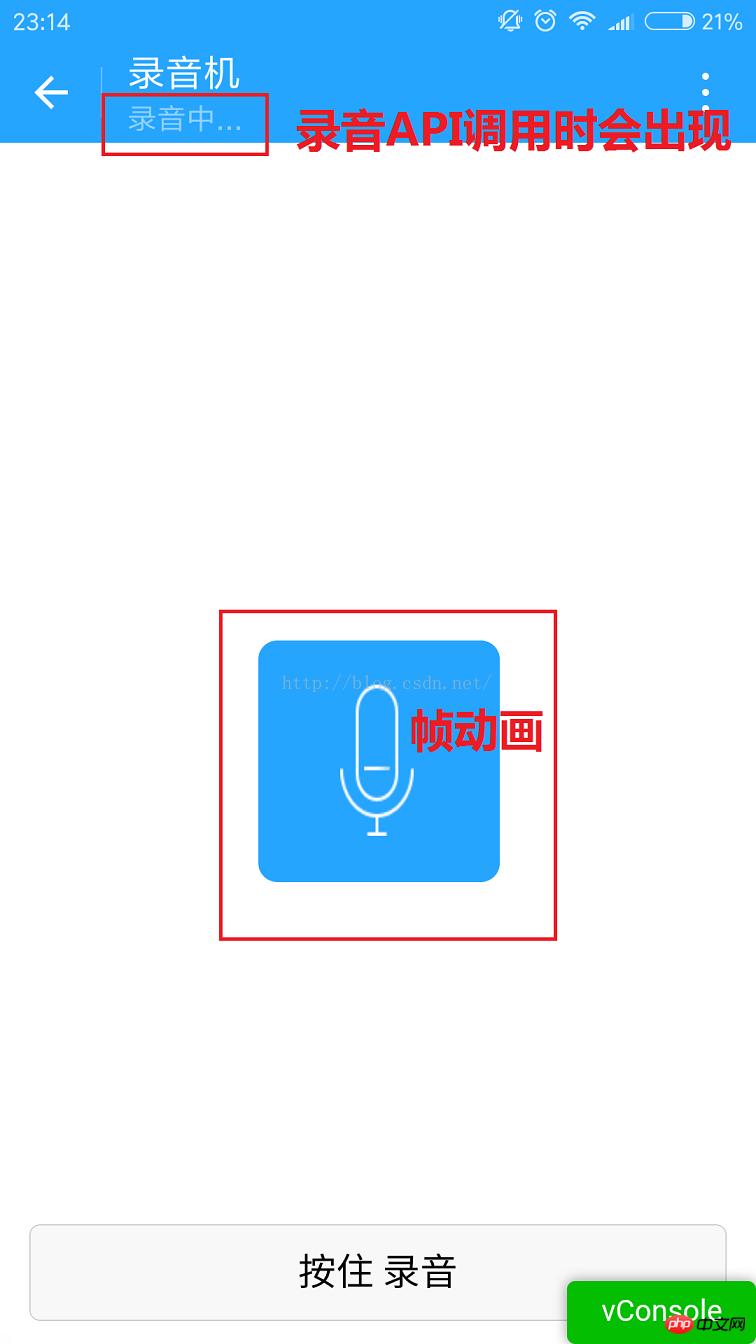
2.按住 錄音按鈕的時候會出現麥克風.中間的麥克風是個幀動畫. 其實就是用js控制圖片顯示隱藏.沒啥好說的.這里值得說一說的是錄音.微信的錄音API后,如果錄音時間太短,會錄音失敗.所以fail的時候還是需要處理一下.錄音時間的限制和微信語音是一樣的.60秒.
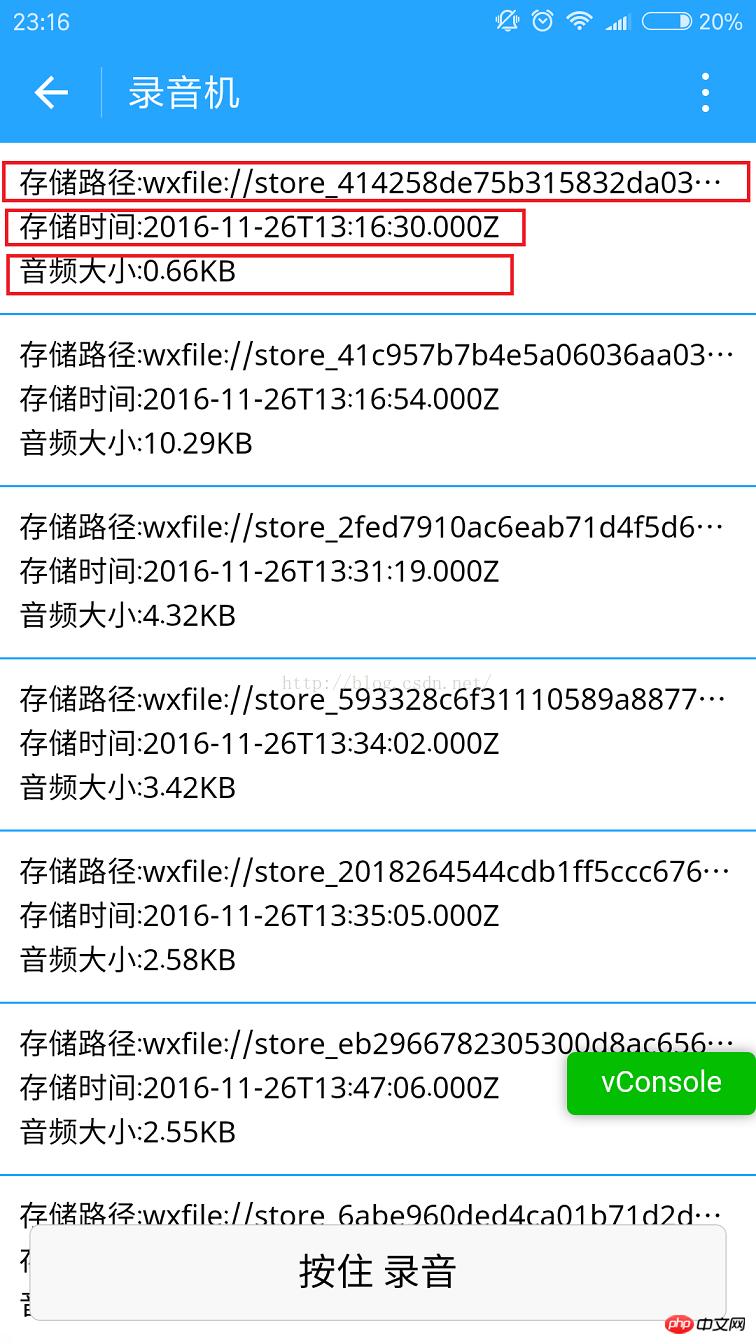
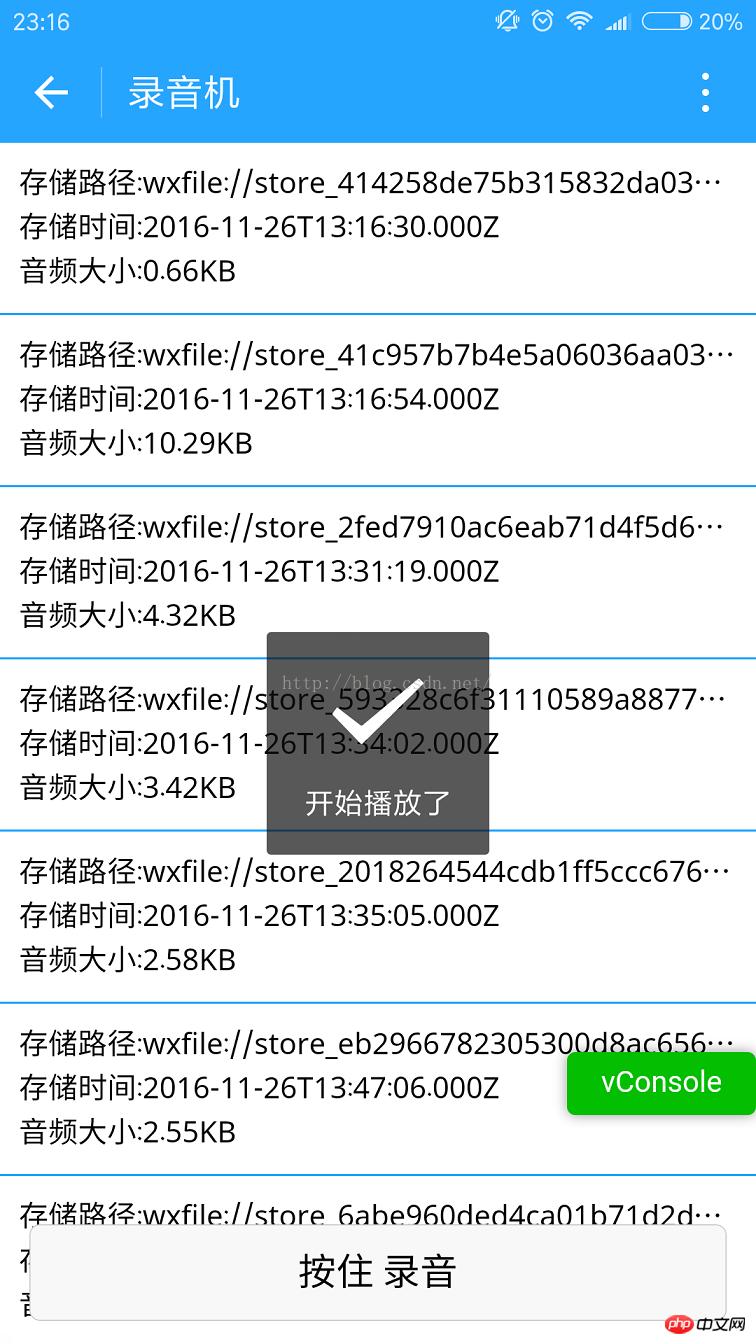
3.我在錄音完成后才加載列表. 下圖就是從微信存儲的文件里獲取到的列表信息.有儲存路徑,創建時間,文件大小. 這里的文件可能不只是音頻.這里我沒做判斷.下面的路徑都是wx:file//store_... 我也去找了下.在Tencent/micromsg/wxafiles/wx..../這一級目錄就能找到了. 時間是格式化之后的.文件大小是B,轉成KB如下.
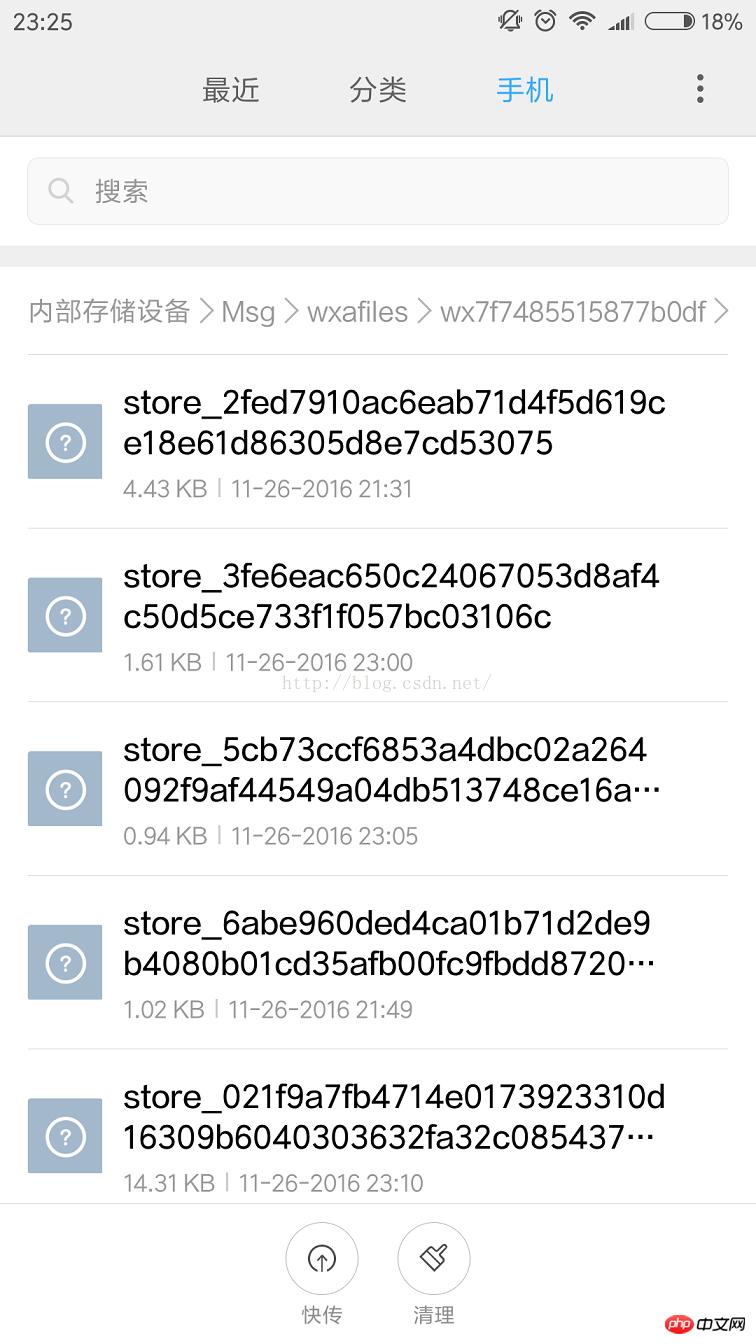
手機目錄如下.但是打開之后播放不了.目前原因不明.
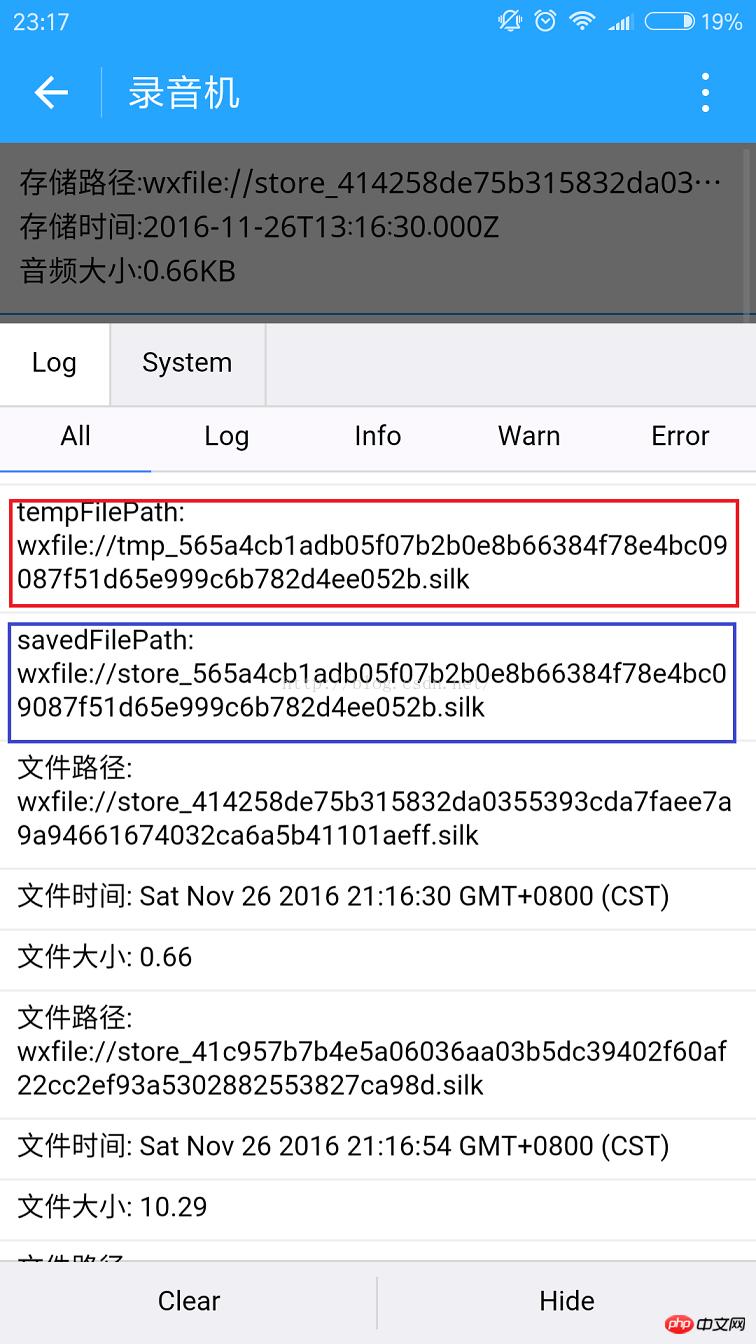
下面是文件全名稱. 1.tempFilePath : 錄音之后的臨時文件.第二次進入小程序就不能正常使用了. 2.savedFilePath :持久保存的文件路徑.值得注意的是微信只給100M的儲存空間.還是盡早上傳到后臺吧.
4.播放錄音音頻. 點擊item就能聽到你的聲音了.別被自己嚇住.哈哈.
上代碼: 1.index.wxml <!--index.wxml-->
<scroll-view>
<view wx:if="{{voices}}" class="common-list" style="margin-bottom:120rpx;">
<block wx:for="{{voices}}">
<view class="board">
<view class="cell" >
<view class="cell-bd" data-key="{{item.filePath}}" bindtap="gotoPlay" >
<view class="date">存儲路徑:{{item.filePath}}</view>
<view class="date" >存儲時間:{{item.createTime}}</view>
<view class="date">音頻大小:{{item.size}}KB</view>
</view>
</view>
</view>
</block>
</view>
</scroll-view>
<view wx:if="{{isSpeaking}}" class="speak-style">
<image class="sound-style" src="../../images/voice_icon_speech_sound_1.png" ></image>
<image wx:if="{{j==2}}" class="sound-style" src="../../images/voice_icon_speech_sound_2.png" ></image>
<image wx:if="{{j==3}}" class="sound-style" src="../../images/voice_icon_speech_sound_3.png" ></image>
<image wx:if="{{j==4}}" class="sound-style" src="../../images/voice_icon_speech_sound_4.png" ></image>
<image wx:if="{{j==5}}"class="sound-style" src="../../images/voice_icon_speech_sound_5.png" ></image>
</view>
<view class="record-style">
<button class="btn-style" bindtouchstart="touchdown" bindtouchend="touchup">按住 錄音</button>
</view>2.index.wxss /**index.wxss**/
.speak-style{
position: relative;
height: 240rpx;
width: 240rpx;
border-radius: 20rpx;
margin: 50% auto;
background: #26A5FF;
}
.item-style{
margin-top: 30rpx;
margin-bottom: 30rpx;
}
.text-style{
text-align: center;
}
.record-style{
position: fixed;
bottom: 0;
left: 0;
height: 120rpx;
width: 100%;
}
.btn-style{
margin-left: 30rpx;
margin-right: 30rpx;
}
.sound-style{
position: absolute;
width: 74rpx;
height:150rpx;
margin-top: 45rpx;
margin-left: 83rpx;
}
.board {
overflow: hidden;
border-bottom: 2rpx solid #26A5FF;
}
/*列布局*/
.cell{
display: flex;
margin: 20rpx;
}
.cell-hd{
margin-left: 10rpx;
color: #885A38;
}
.cell .cell-bd{
flex:1;
position: relative;
}
/**只顯示一行*/
.date{
font-size: 30rpx;
text-overflow: ellipsis;
white-space:nowrap;
overflow:hidden;
}3.index.js //index.js
//獲取應用實例
var app = getApp()
Page({
data: {
j: 1,//幀動畫初始圖片
isSpeaking: false,//是否正在說話
voices: [],//音頻數組
},
onLoad: function () {
},
//手指按下
touchdown: function () {
console.log("手指按下了...")
console.log("new date : " + new Date)
var _this = this;
speaking.call(this);
this.setData({
isSpeaking: true
})
//開始錄音
wx.startRecord({
success: function (res) {
//臨時路徑,下次進入小程序時無法正常使用
var tempFilePath = res.tempFilePath
console.log("tempFilePath: " + tempFilePath)
//持久保存
wx.saveFile({
tempFilePath: tempFilePath,
success: function (res) {
//持久路徑
//本地文件存儲的大小限制為 100M
var savedFilePath = res.savedFilePath
console.log("savedFilePath: " + savedFilePath)
}
})
wx.showToast({
title: '恭喜!錄音成功',
icon: 'success',
duration: 1000
})
//獲取錄音音頻列表
wx.getSavedFileList({
success: function (res) {
var voices = [];
for (var i = 0; i < res.fileList.length; i++) {
//格式化時間
var createTime = new Date(res.fileList[i].createTime)
//將音頻大小B轉為KB
var size = (res.fileList[i].size / 1024).toFixed(2);
var voice = { filePath: res.fileList[i].filePath, createTime: createTime, size: size };
console.log("文件路徑: " + res.fileList[i].filePath)
console.log("文件時間: " + createTime)
console.log("文件大小: " + size)
voices = voices.concat(voice);
}
_this.setData({
voices: voices
})
}
})
},
fail: function (res) {
//錄音失敗
wx.showModal({
title: '提示',
content: '錄音的姿勢不對!',
showCancel: false,
success: function (res) {
if (res.confirm) {
console.log('用戶點擊確定')
return
}
}
})
}
})
},
//手指抬起
touchup: function () {
console.log("手指抬起了...")
this.setData({
isSpeaking: false,
})
clearInterval(this.timer)
wx.stopRecord()
},
//點擊播放錄音
gotoPlay: function (e) {
var filePath = e.currentTarget.dataset.key;
//點擊開始播放
wx.showToast({
title: '開始播放',
icon: 'success',
duration: 1000
})
wx.playVoice({
filePath: filePath,
success: function () {
wx.showToast({
title: '播放結束',
icon: 'success',
duration: 1000
})
}
})
}
})
//麥克風幀動畫
function speaking() {
var _this = this;
//話筒幀動畫
var i = 1;
this.timer = setInterval(function () {
i++;
i = i % 5;
_this.setData({
j: i
})
}, 200);
}通過以上實現方式,我們就可以在小程序里快樂的錄音并播放了,你學會了么? 注意: 1.錄音的音頻默認是存在本地的臨時路徑下.第二次進入小程序無法正常使用,可以存持久,但是本地文件大小的限制是100M,最好還是上傳后臺. 2.錄音的時間不能太短.否則會失敗;也不能超過60秒.到了60秒會自動停止錄音. 3.音頻播放不能同時播放多個音頻.看文檔.微信小程序 播放音頻文檔 以上就是圖文詳解微信小程序中調用錄音功能和音頻播放的方法的詳細內容,更多請關注php中文網其它相關文章! 小程序是一種不需要下載安裝即可使用的應用,它實現了應用“觸手可及”的夢想,用戶掃一掃或者搜一下即可打開應用。 |
溫馨提示:喜歡本站的話,請收藏一下本站!
本站發布的Win7純凈版系統、Win10純凈版和XP純凈版系統僅為個人學習測試使用,請在下載后24小時內刪除,不得用于任何商業用途,否則后果自負,請支持購買微軟正版軟件!
本站所有資源全部來自于網絡資源,如侵犯到您的權益,請及時通知我們(peng896066052@126.com),我們會及時處理.
Copyright © 2018-2020 雨林木風下載站