|
導讀Adobe Photoshop,簡稱“PS”,是由Adobe Systems開發和發行的圖像處理軟件。Photoshop主要處理以像素所構成的數字圖像。使用其眾多的編修與繪圖工具,可以有效地進行圖片... Adobe Photoshop,簡稱“PS”,是由Adobe Systems開發和發行的圖像處理軟件。Photoshop主要處理以像素所構成的數字圖像。使用其眾多的編修與繪圖工具,可以有效地進行圖片編輯工作。ps有很多功能,在圖像、圖形、文字、視頻、出版等各方面都有涉及。 作為編碼者,美工基礎是偏弱的。我們可以參考一些成熟的網頁PS教程,提高自身的設計能力。套用一句話,“熟讀唐詩三百首,不會作詩也會吟”。本系列的教程來源于網上的PS教程,都是國外的,全英文的。本人嘗試翻譯這些優秀的教程。因為翻譯能力有限,翻譯的細節上還有待推敲,希望廣大網友不吝賜教。 約定: 1、本文的軟件是Photoshop CS5版本 2、原教程的截圖是英文的,本人在重新制作的基礎上,重新截了中文版的圖 3、原文中有些操作沒有給出參數。本人在反復測試的情況下測定了一些參數,以紅色的文字顯示。有些錯誤的參數,直接以紅色文字顯示正確的參數 例如:(90,22,231,77),表示矩形的左上角的坐標是(90,22),寬231,高77 例如:(90,22),表示矩形的左上角的坐標是(90,22),矩形的其他兩個參數教程里已經指定 4、在教程的最后會附上本人的心得。有些是對教程中的一些步驟的優化等。
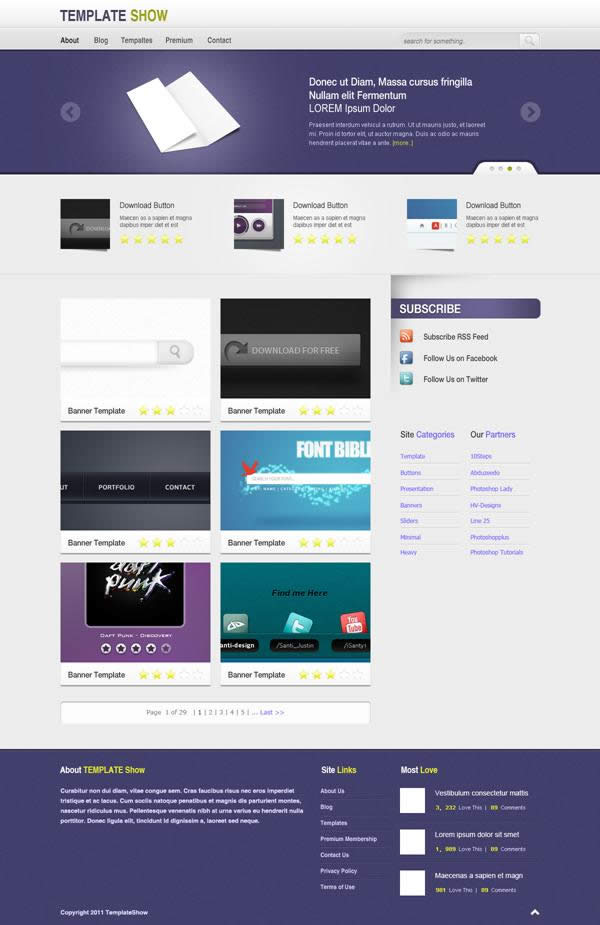
In this week’s tutorial we will create a gallery layout. I will not be using the 960 grid in this tutorial, the purpose is to show beginners out there how important the Ruler Tool is when you are designing in Photoshop. We will also tackle how to create and use patterns and using mask and filters. 在這個每周教程中,我們要創建一個畫廊的網頁布局。我將在本教程中不使用960網格系統,目的是給初學者展示標尺工具在PS中開始設計網頁是多么重要。我們也會演示如何創建使用圖案、使用蒙版和濾鏡
Step 1: Setting up the Document 步驟1:設置文檔
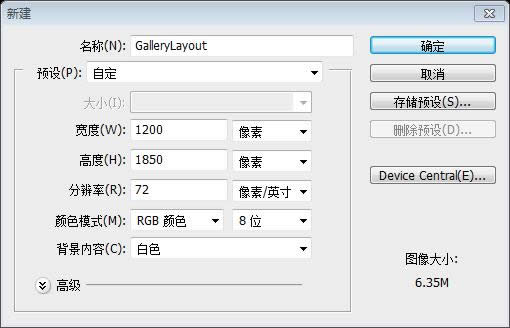
Start by creating a 1200px x 1850px document in Photoshop. 開始于在PS中新建文檔,尺寸:1200px*1850px
As I mentioned earlier we will be using the Ruler Tool. Make sure that rulers and guides is turned on. 正如剛才所說,我們要使用標尺工具。確保標尺和參考線都是打開的
Also one thing important in using Ruler Tool is the Info(Information) Panel. The use of this is when you are measuring using the ruler the information will be shown in the information panel. Make sure that this is shown in your panels at the right. If it is not shown you can access this by going to Windows – Info. 此外在使用標尺工具中重要的一件事是信息面板。它的用途是當你正在測量時,將標尺信息顯示在信息面板中。請確保這在您右邊的面板中顯示。如果它不顯示,您可以通過點擊:窗口 > 信息去顯示它。
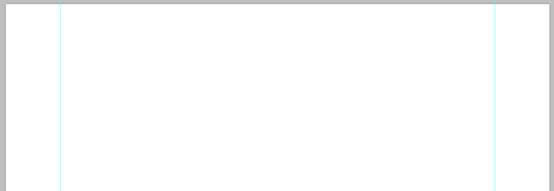
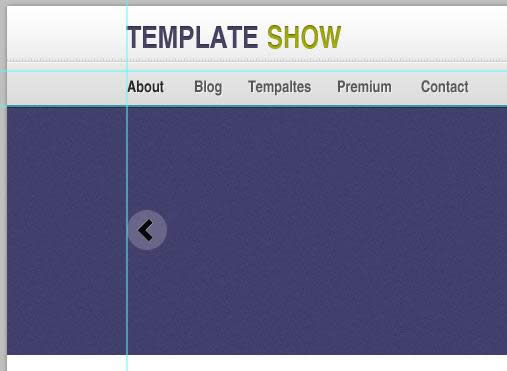
The total width of your site will be 960px. So, let’s create our first guide by going to View – New Guide, set the value to 120px. Repeat the step of create a guide but now change the value to 1080px, this will make a total of 960px in the center of our canvas. 你的網頁的總寬度會是960px。所以,讓我們創建我們第一條參考線,點擊:視圖 > 新建參考線,設置值為120px。重復步驟創建一條參考線,不過把值改為1080px,這會使你的畫布的中間部分一共有960px寬。
Step 2: Creating the Header 步驟2:創建頭部區域
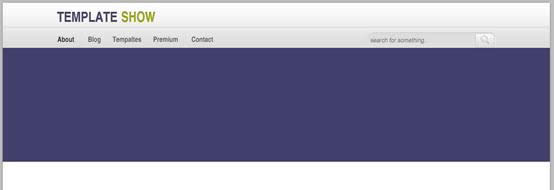
TheHeader section is composed of Logo, Navigation, and Search. First thing you need to do is to create a folder name it Header and inside of it create sub folders and name them Logo, Navigation, and Search. It is important that you group all the things you do properly in order to be organized and easily locate things in the future for coding purposes. 頭部區域包含LOGO、導航欄、搜索欄。首要的事是你需要創建一個名為Header的文件夾,并在其中創建名為Logo、Navigation、Search的子文件夾。把各項分組是非常重要的,以便正確的組織元素和將來編碼的時候很容易定位元素。
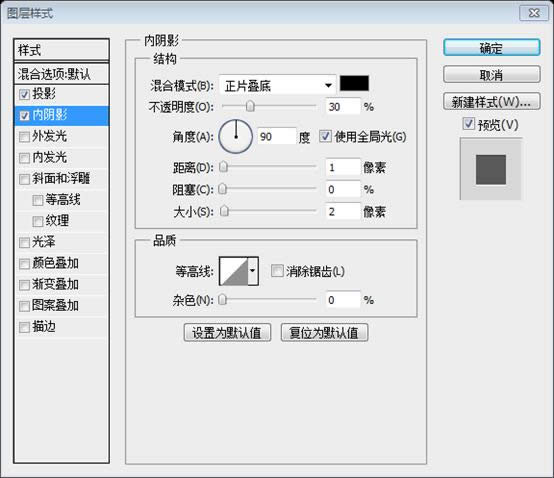
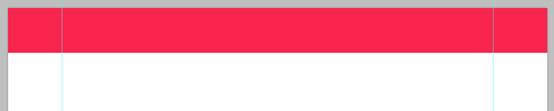
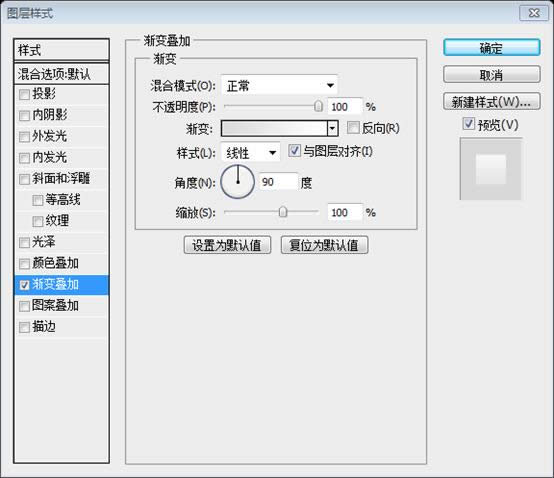
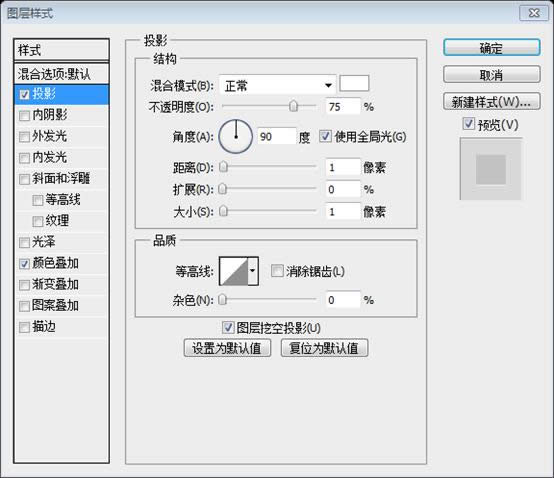
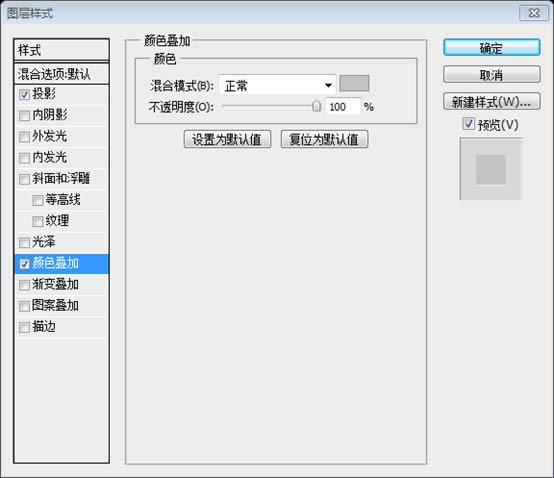
Inside Header folder create a new layer and name it bg. Using Rectangle Tool create a 100% x 100px. By looking at the Info Panel you can view the dimension of the shape that you’re making. Or you can do this by creating a new guide by going to View – New Guide – 100px Horizontal. It’s up to you what way you choose. 在Header文件夾里新建bg圖層。用矩形工具創建100%*100px的矩形。查看信息面板時,你可以看見你創建的形狀的尺寸。或者你可以新建一條參考線來完成這件事,點擊:視圖 > 新建參考線,參數設置為:水平100px。這取決于你用什么方法來完成。
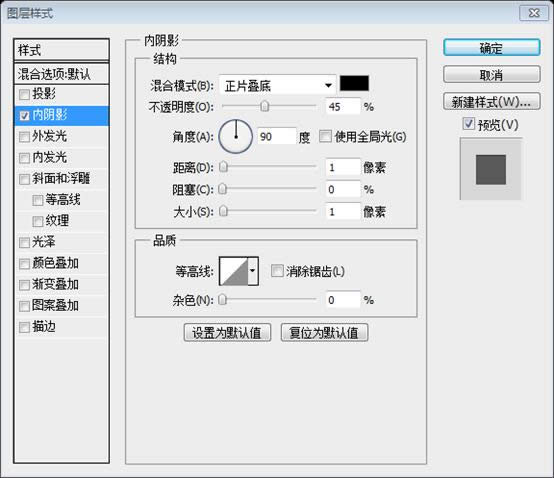
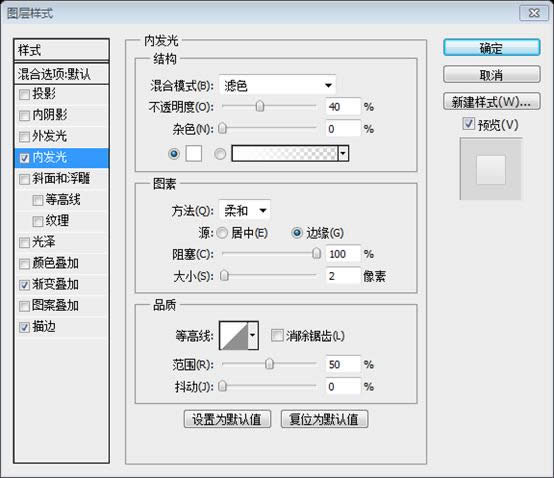
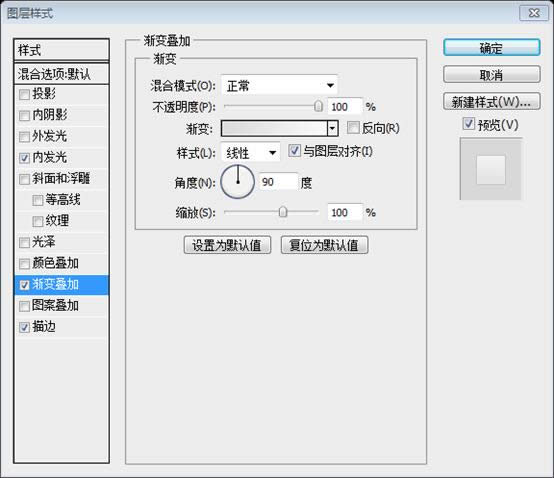
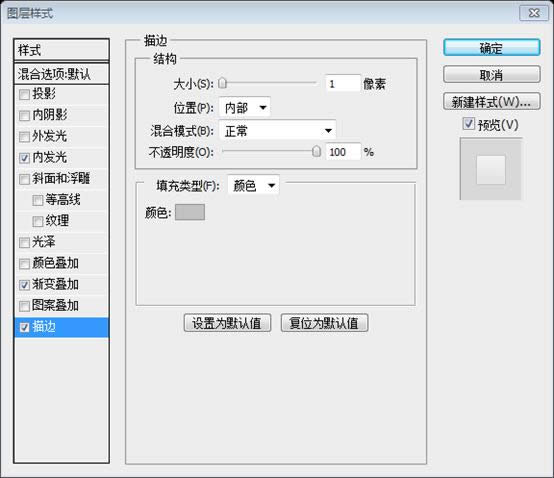
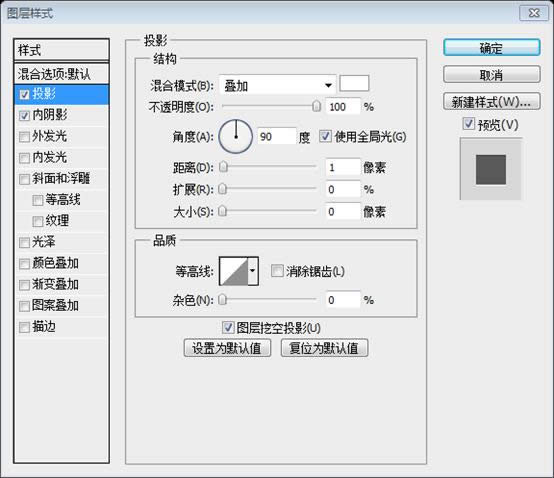
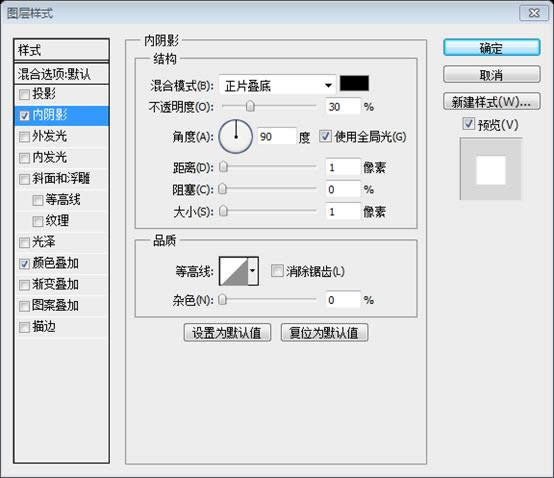
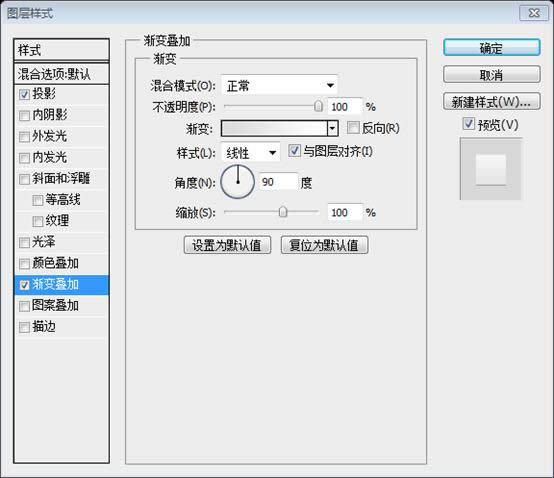
Add this Blending Option 添加如下的混合選項
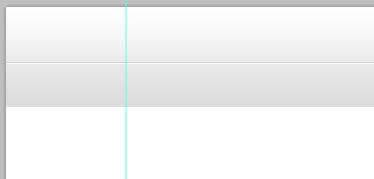
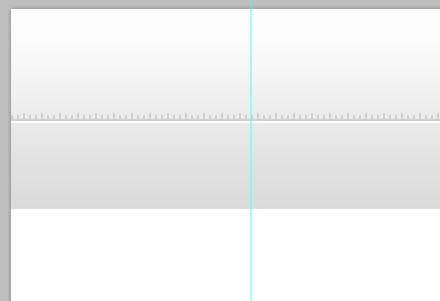
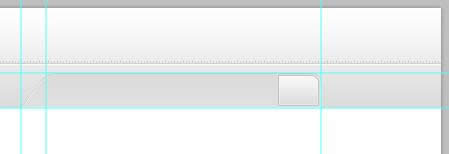
Next thing you do is create two lines using Line Tool 55px distance from the top. But I suggest to use Rectangular Marquee Tool to make the line pixel perfect. 接下來的事你要用直線工具創建兩條直線((0,55,1200,1)、(0,56,1200,1)),距離頂部55px。不過我建議你使用矩形選框工具讓直線的像素完美
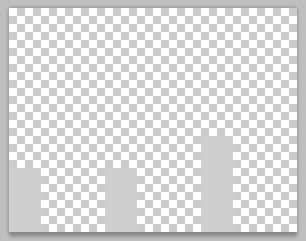
As you can see in the preview of our header there is a pattern above the lines. Create a new document 9px x 7px, background content Transparent. Using Pencil Tool with a fill color of #cfcfcf create a pattern as shown in the screenshot below. When you are done go to Edit – Define Pattern and name it whatever you wish to call it. 就像你看到的我們頭部區域的預覽,那兒有一個圖案在直線的上方。創建新文檔,尺寸:9px*7px,背景是透明的。用鉛筆工具按照下面的截圖創建圖案,填充色: #cfcfcf。當你完成后,點擊:編輯 > 定義圖案,取個你想取的名字。
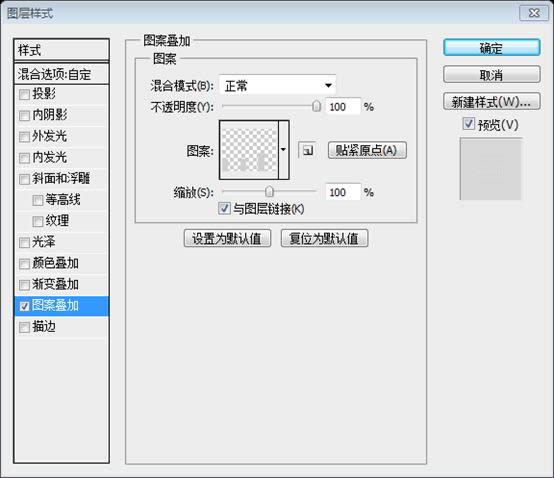
Using Paint Bucket Tool instead of foreground change it to pattern and select the pattern we made. Apply this pattern by making a selection and fill with pattern using Paint Bucket Tool. 選擇油漆桶工具,并把填充內容替換為我們之前創建的圖案。創建一個選區,用油漆桶工具填充圖案以完成添加圖案的工作。 建議用矩形工具創建一個矩形(0,48,1200,7),填充為0,添加如下的圖案疊加的圖層樣式
Step 3: Creating Logo 步驟3:創建LOGO
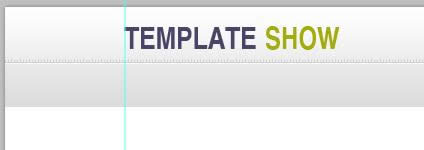
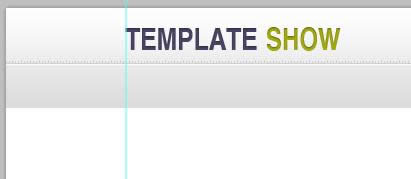
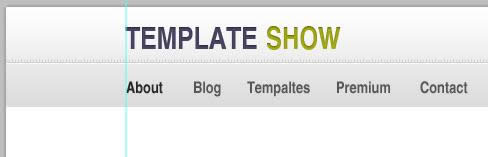
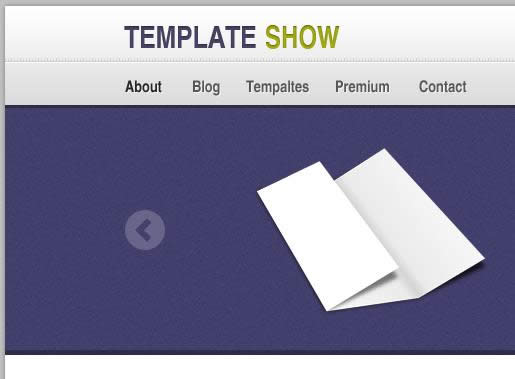
This is just a simple site name logo. Start by using Text Tool and type your desired site name. 這僅僅是簡單的網站名字LOGO。用文字工具并輸入你期望的網站的名字 字體:Helvetica BOLD,字號:30px,TEMPLATE的顏色: #494367;SHOW的顏色: #A5AB0D
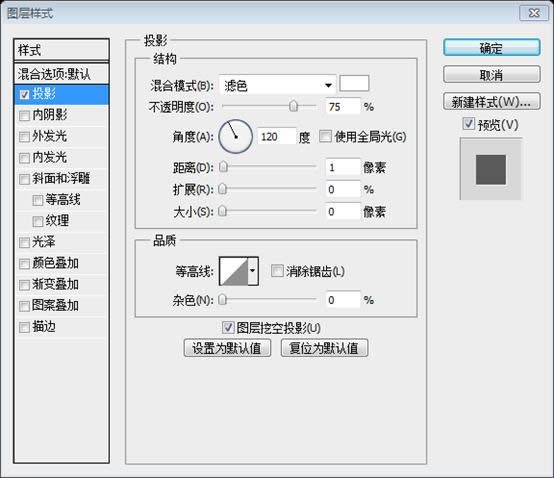
Add this Blending Option 添加如下的混合選項
Step 4: Creating Navigation 步驟4:創建導航菜單
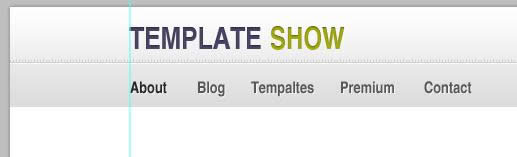
Again using Text Tool lets place our navigation links. 再次用文字工具擺放我們的導航鏈接 字體:Helvetica BOLD,字號:16px,About的顏色: #252525;其余文字的顏色: #555555
Add this Blending Option 添加如下的混合選項
Step 5: Creating Search 步驟5:創建搜索欄
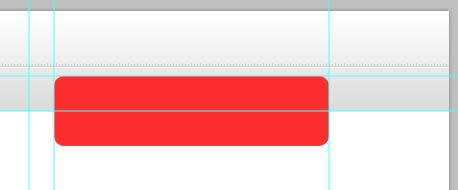
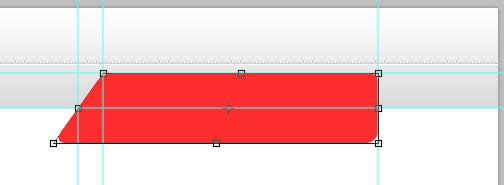
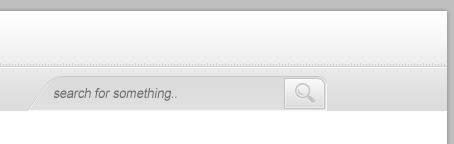
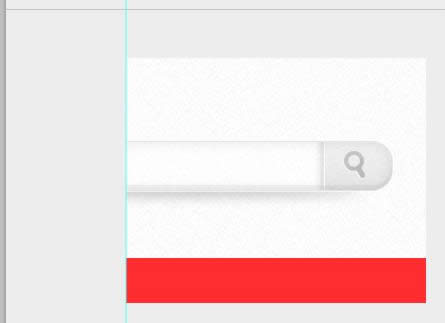
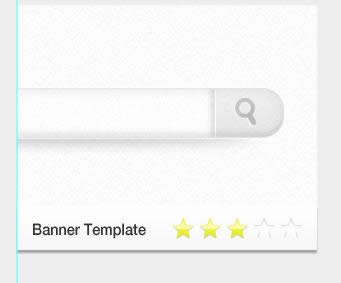
To create our search bar use Rounded Rectangle Tool and set the radius to 10px, then create a shape as shown in the screenshot below. 用圓角矩形工具創建我們的搜索欄,設置半徑為10px,然后按照下面的截圖創建一個圓角矩形(65,805,275,70) 建議先新建四條參考線:垂直780、垂直805、水平65、水平100
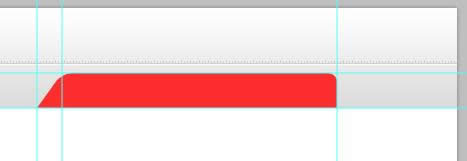
As you can see in the preview above, the left side of our search bar is slanting. So, we need to transform our shape by selecting the layer and press Ctrl + T then Right Click to the work area and select Distort. 如你所見的預覽圖中,我們搜索欄中的左邊是斜的。所以,我們要變換我們的形狀,選則圖層并按Ctrl + T,然后在工作區域右鍵,選擇扭曲。按照下圖進行變形,高度設置70是合適的,只要寬度變成325px,左邊就正好穿過交點。
Next we need to mask the bottom part of our shape to be equal in our header. First set the foreground to #000000, then select the layer bg in our header and make a selection of it. While it is selected select the shape of our search the press the Mask Icon in the layers panel area beside the fx icon. Just refer to the screenshot below. 下一步,我們需要遮罩掉我們的形狀的底部,使其等于我們的頭部區域。首先設置前景色為 #000000,然后在我們的頭部區域的bg圖層做出一個選區。當它被選中,選擇我們搜索欄的形狀,然后在圖層面板中區fx圖標(添加圖層樣式圖標)旁邊的蒙版圖標。參照下面的截圖。
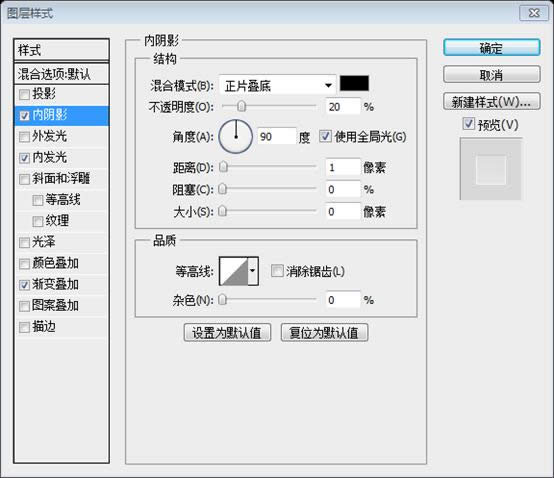
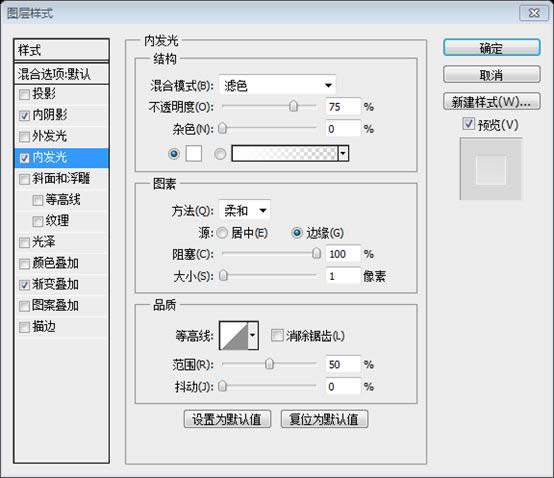
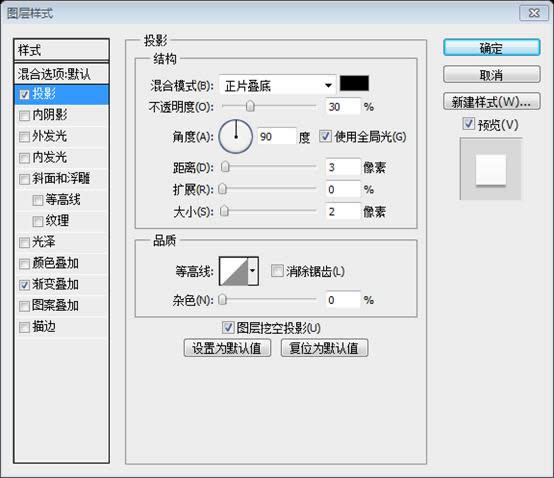
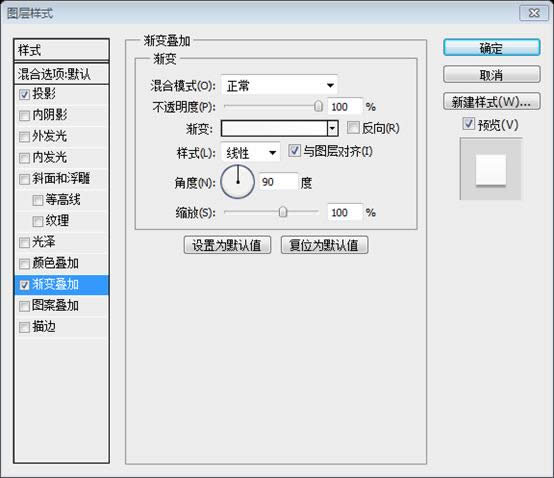
Add this Blending Option 添加如下的混合選項
Now let’s create the search button. Make a selection of the search bar, contract it by 2px, and fill it with any color. To contract go to Select – Modify – Contract. 現在讓我們創建搜索欄按鈕。創建搜索欄的選區,收縮2px,然后用任意顏色填充(新建圖層,然后用油漆桶工具填充顏色)。通過點擊:選擇 > 修改 > 收縮,收縮選區 建議先做后一步后再做收縮2px
Select Rectangular Marquee Tool, by pressing Alt key you will notice that there is a - sign beside the selection pointer, this sign means to deselect selection. Now you can deselect the section you want to deselect. 選擇矩形選擇工具,按住Alt鍵,你可以注意到在選擇光標一側有一個減號,這個減號意味著去除選區。現在你可以去除你想去除的選區
Add this Blending Option 添加如下的混合選項
Open up the search icon, align it and add a 1px drop shadow #ffffff. 打開search圖標,對齊擺放并添加1px白色的投影
因為圖標有自己的顏色,因此,再給圖標添加顏色疊加: #c2c2c2,以使風格統一
再給搜索欄添加文字:search for something..。字體:Arial 斜體,字號:14px,顏色: #666666
Step 6: Creating Slider 步驟6:創建圖片滑動欄
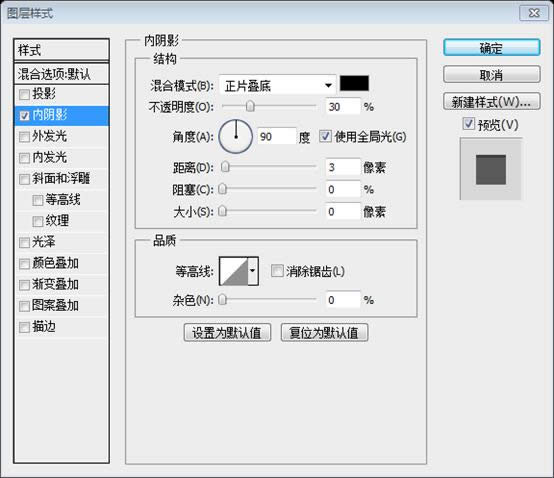
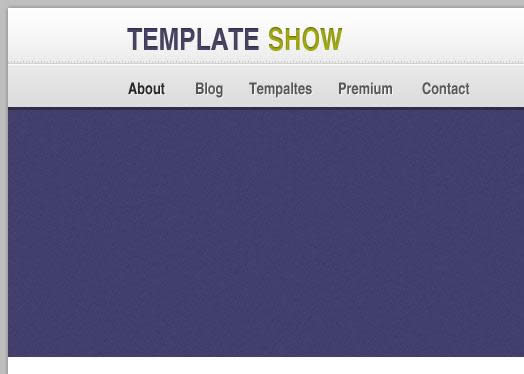
Create a folder above Header folder and name it Slider. Using Rectangle Tool with a fill color of #413f6b create a 100% by 250px. 在Header文件夾上新建Slider文件夾。用矩形工具創建一個寬100%高250px的矩形(0,99,1200,250),填充顏色: #413f6b
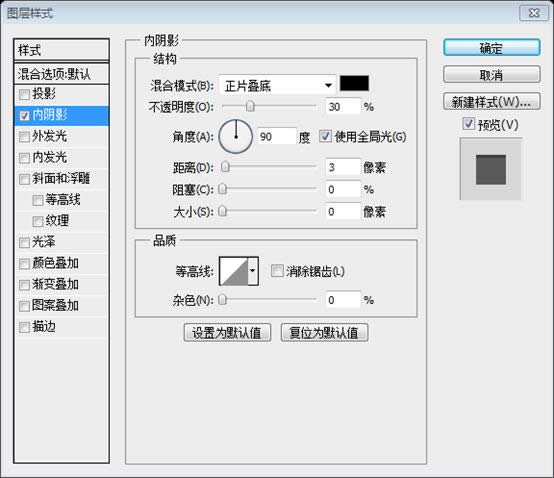
Add this Blending Option 添加如下的混合選項
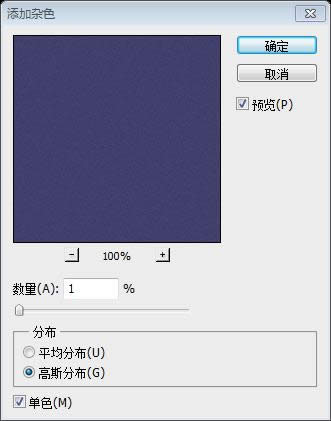
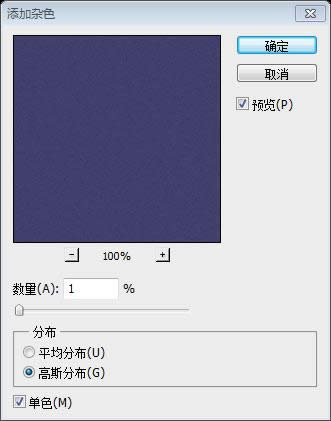
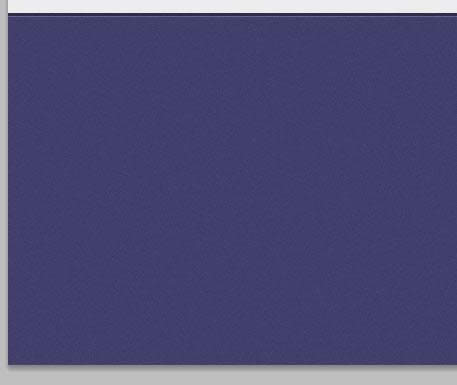
Convert the shape layer to Smart Filters by going to Filter – Convert for Smart Filters. Now, go to filter again and add noise 通過點擊:濾鏡 > 轉換為智能濾鏡把該形狀圖層轉換為智能對象。現在,再次點擊:濾鏡 > 添加雜色
Controls 控制按鈕
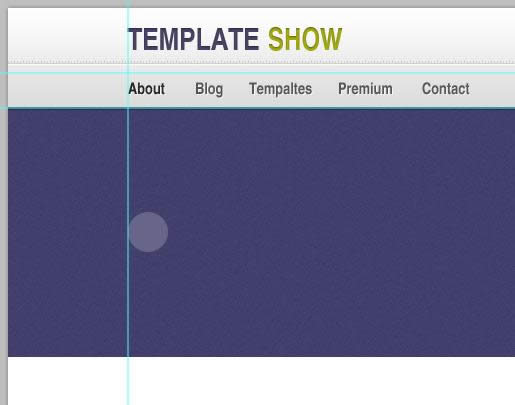
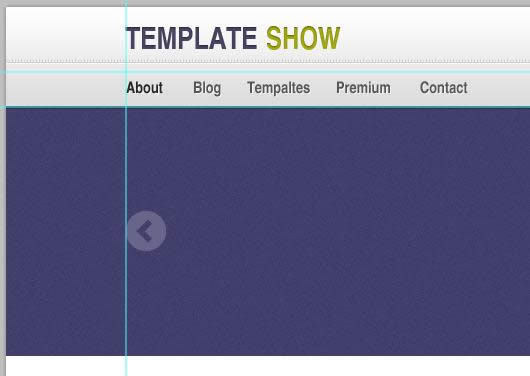
Create a folder inside Slider and name it Controls. Controls should have sub folders named: NextPrev and Slider Control. Inside NextPrev let’s create our Next and Previous buttons start by selecting Ellipse Tool with a fill color of #676589 and create a shape 40px x 40px. 在Slider組里添加Controls文件夾。Controls有兩個子文件夾:NextPrev和Slider Control。在NextPrev中,我們用橢圓工具創建我們的Next和Previous按鈕,顏色填充: #676589,形狀尺寸:40px * 40px。(120,204,40,40)
Download the arrow icon provided in the resources and place it on our canvas. Resize and position it as shown in the screenshot below. 下載資源中提供的箭頭圖標并將它置于我們的畫布上。調整大小并按照下面的截圖擺放
We are going to mask the shape, first set the foreground color to #000000, next make a selection of the arrow icon by Ctrl + Click to the layer and Inverse the selection by pressing Ctrl + Shift + I. While it is selected select the Ellipse shape and press the Mask Icon beside the fx icon in the layers panel. 我們打算給形狀添加遮罩,首先設置前景色為 #000000,接下來通過在圖層上按Ctrl + Click創建箭頭的選區,并按Ctrl + Shift + I翻轉選區。當出現選區時,選擇橢圓形狀圖層然后按在圖層面板中區fx圖標(添加圖層樣式圖標)旁邊的蒙版圖標。然后把箭頭圖層隱藏。
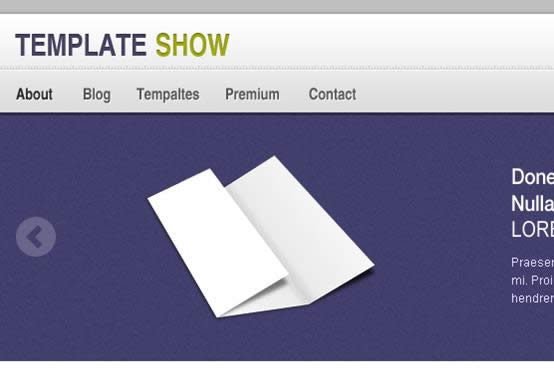
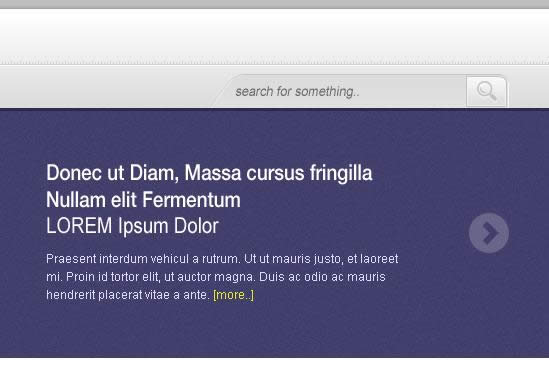
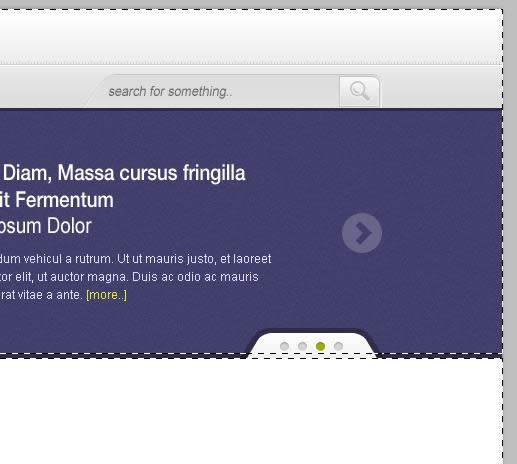
Duplicate the shape and place it on the other side. Grab some sample images to put in our slide. Also, using Text Tool add some text: a sample title and a little content just follow the formatting of the text as shown in the screenshot below. 復制該形狀并擺放到另一邊(1040,204,40,40)。獲取一些示例圖片放在我們的圖片滑動欄上。并,用文字工具添加一些文本:按照下面截圖上的文本格式的一個示例標題和一些內容文字。
標題字體:Helvetica BOLD,字號:22px,顏色: #ffffff; 段落字體:Arial,字號:12px,顏色: #E0DEFF;黃色的more的顏色: #EAEC25
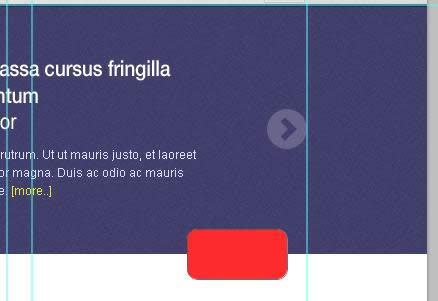
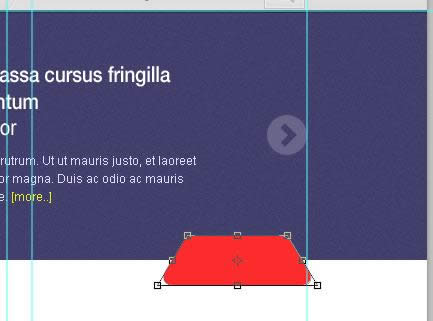
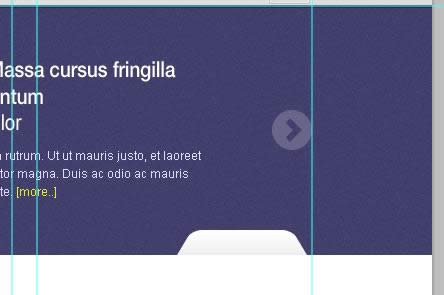
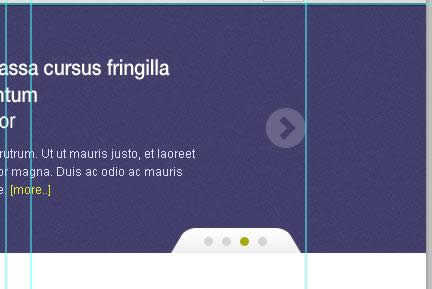
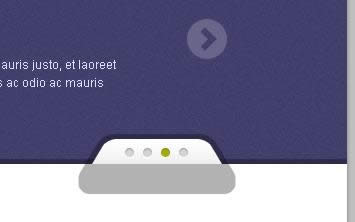
Now we are going to work on our Slider Controls. Using Rounded Rectangle Tool with a 10px radius create a shape as shown in the screenshot below. Transform the shape the same as we did in our Search bar. 現在我們打算創建我們的滑動欄的導航按鈕。用圓角矩形工具,設置半徑為10px,按照下圖創建一個圓角矩形。像和之前做搜索欄一樣進行變換
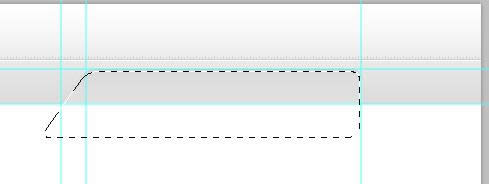
Also mask the layer as we did previously, refer to Step: 5 Creating Search. 給這個圖層添加蒙版,就像之前做的,查看步驟5:創建搜索欄 這個步驟比較省略,因此在這兒補充完整 用圓角矩形工具,半徑10px,創建一個圓角矩形(960,324,100,50)
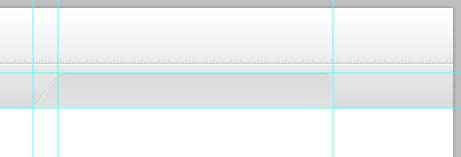
按Ctrl + T自由變換,在形狀上右鍵選擇扭曲,按住Shift鍵,往右拖動右下角的控制塊,直到寬度變為130;再按住Shift鍵往左拖動左下角的控制塊,直到寬度變為160。
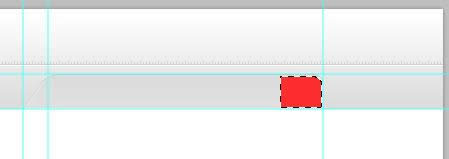
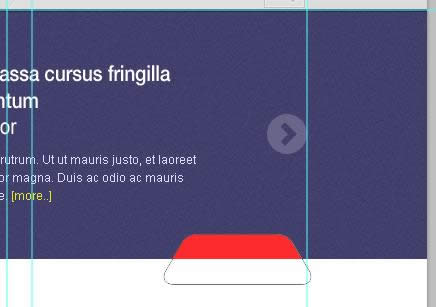
在紫色背景層上按Ctrl + Click,獲得矩形選區,然后選中紅色形狀的圖層,按圖層面板上的蒙版按鈕
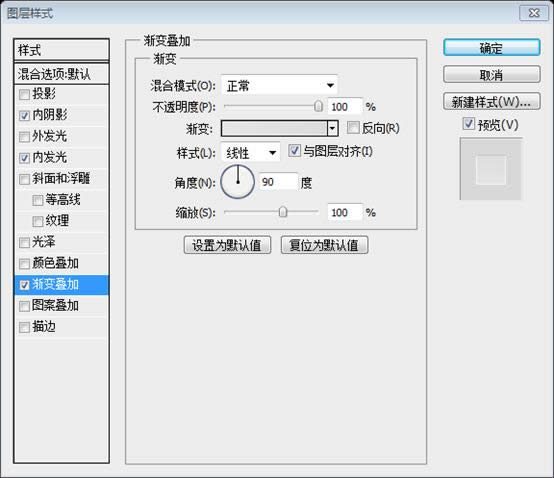
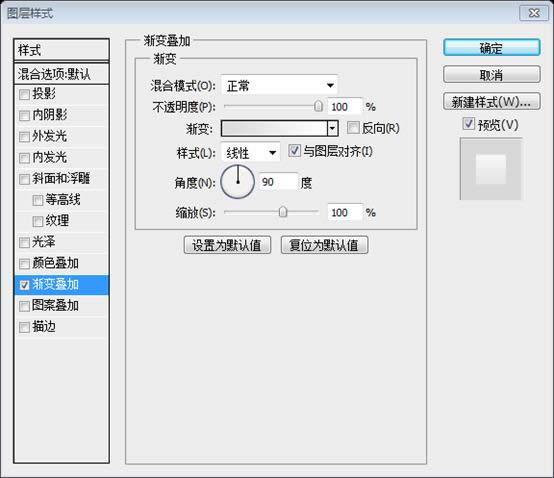
Add this Blending Option 添加如下的混合選項
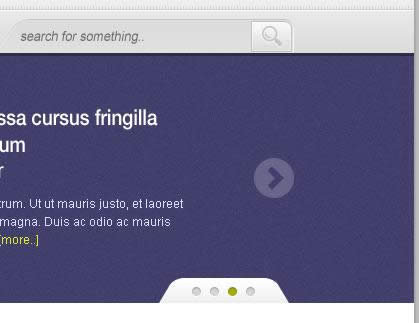
Using Ellipse Tool create a shape as shown in the screenshot below. 用橢圓工具創建如下面截圖所示的形狀(978,333,9,9)、(996,333,9,9)、(1014,333,9,9)、(1032,333,9,9) 灰色的顏色: #D4D4D4,綠色的顏色: #A5AB0D
Add this Blending Option 添加如下的混合選項
This will be the result. 這是最終的效果
Using Rectangle Tool with a fill color of #000000 create a 100% by 5px shape, then set the layer mode to multiply and opacity to 30% in the layers panel. 用矩形工具創建一個寬100%高5px的矩形(0,344,1200,5),填充色: #000000,然后在圖層面板中設置圖層模式為正片疊底,不透明度30%
Make a selection of the slider control shape and expand it by 5px by going to Select – Modify – Expand. 創建滑動欄導航塊的選區,并通過點擊:選擇 > 修改 > 擴展,擴展選取5px。 新建圖層,命名為Border,用黑色填充,圖層模式改為正片疊底,不透明度改為30%
選中紫色背景圖層,按Ctrl + Click創建選區,然后選中Border圖層,點擊圖層面板上的蒙版按鈕
左右有兩個深色色塊,不和諧,繼續修改。在Border圖層上右鍵選擇轉換為智能對象。在之前的橫條矩形圖層上按Ctrl + Click創建選區,并按Ctrl + Shift + I反選選區
然后選中Border圖層,點擊圖層面板上的蒙版按鈕
Final step to create our slider is to add highlights. First make a selection of our slider base, then select Brush Tool set the hardness to 0% and size about 400px. Fill the selection in a separate layer with #ffffff color and set the blend mode to Soft Light in the layers panel. 最后給我們的滑動欄添加高亮效果。首先給我們的滑動欄創建選區,然后選擇畫筆工具,設置硬度0%、尺寸400px。在單獨的圖層里填充顏色: #ffffff,然后在圖層面板里設置混合模式為柔光
Step 7: Featured Gallery 步驟7:精選畫廊
Create a new folder and name it Featured Gallery. Using Rectangle Tool with a fill color of #ededed create a shape 100% by 200px. Also, create two 1px lines, first line color #ffffff will be placed on the top of our shape and the second line color #c2c2c2 will be on the bottom. 創建新的文件夾Featured Gallery。用矩形工具創建一個矩形(0,349,1200,200),寬100%,高200px,顏色: #ededed。并,創建兩條1px的直線,第一條直線擺放在矩形的頂部(0,349,1200,1),顏色: #ffffff,第二條直線擺放在矩形的底部(0,548,1200,1),顏色: #c2c2c2。
可以看出,在滑動欄的控制塊的底部有條白線。在控制塊圖層上按Ctrl + Click,創建選區,按Ctrl + Shift + I反向選區。選中白色直線的圖層,點擊圖層面板上的蒙版按鈕
Create a new layer above the shape and name it highlight. Then, make a selection of the shape. Using Brush Tool with a fill color of #ffffff brush in the center of the selection then, set the layer mode to Soft Light. 在形狀的圖層上新建圖層highlight。然后,創建形狀的選區。用畫筆工具在選區的中央填充白色,并設置圖層的混合模式為柔光
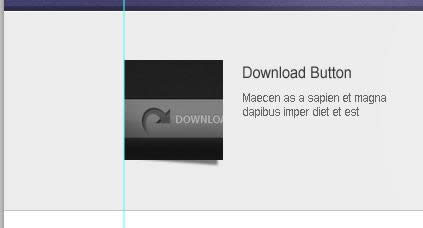
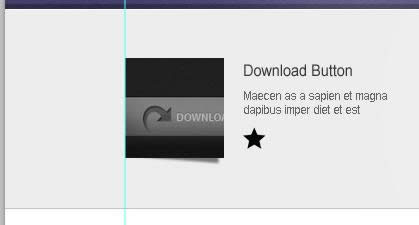
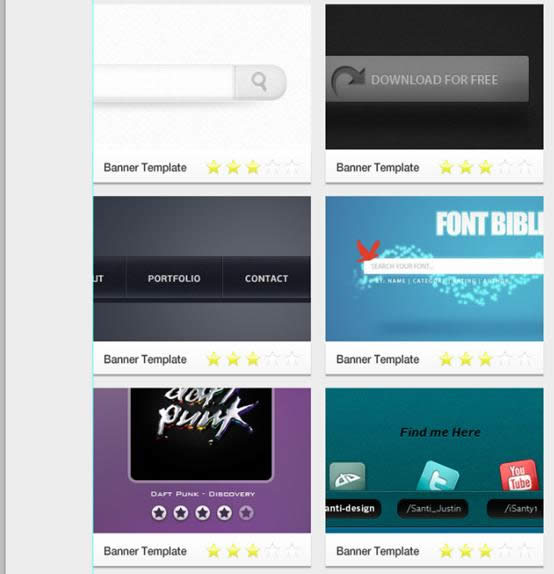
Now let’s work on our sample post for our featured gallery. First, create a folder named post then put a 100px x 100px sample thumbnail on our canvas. Also, Using Text Tool add a Title and Content. 現在讓我們創建精選畫廊中的示例列表。首先,創建一個文件夾post,然后在我們畫布上擺放一個100px*100px的示例縮略圖,用文字工具添加一個標題和內容 標題字體:Arial,字號:16px,顏色: #363636;內容字體:Arial,字號:12px,顏色: #636363
Create a new layer below the thumbnail and name it shadow, using Pen Tool create a shape as shown in the screenshot below. Then, go to Filter – Blur – Gaussian Blur 1px, and set the Opacity to 50% in the layers panel. 在縮略圖的下面創建一個新的圖層shadow,用鋼筆工具按照截圖創建形狀。然后,點擊:濾鏡 > 模糊 > 高斯模糊,單位1px,并在圖層面板中設置不透明度為50%
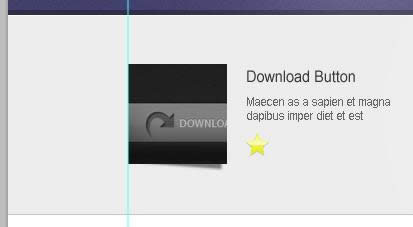
Create a new folder and name it rate. Now, open up the star icon and place it to our canvas and place it as shown in the screenshot below. 創建新的文件夾rate。現在,打開star圖標并按照下面截圖擺放到我們的畫布上
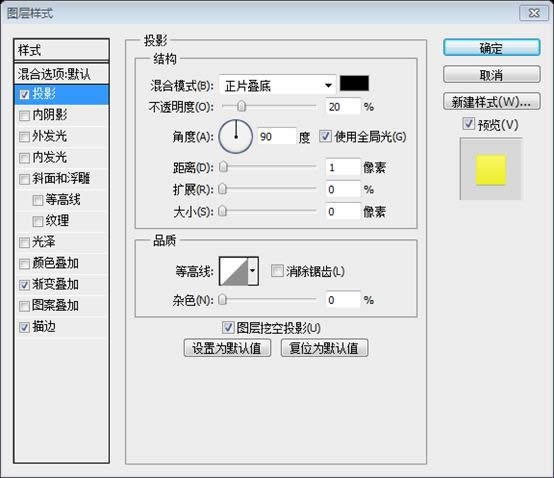
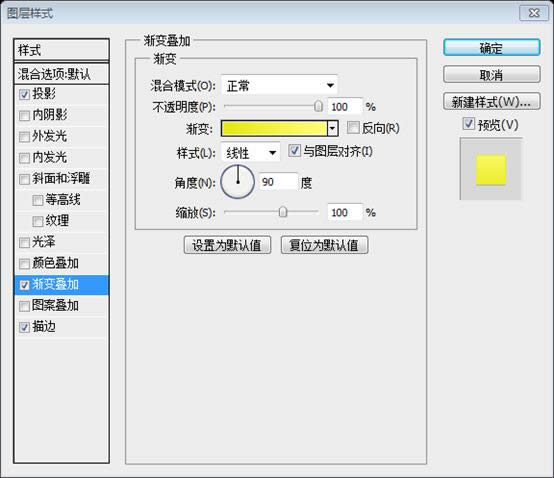
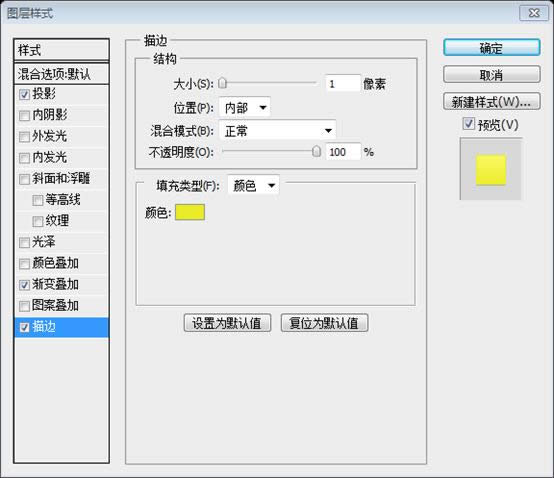
Add this Blending Option 添加如下的混合選項
Make a selection of the star and deselect starting from the middle to bottom and in a separate layer fill it with Linear Gradient #ffffff to Transparent then, set the Opacity to 70% in the layers panel. 給star圖層創建選區,去除star中間到底部的選區,在單獨的一個圖層里用線性漸變填充,從#ffffff到透明,在圖層面板里設置不透明度為70%
This will be the result. 這是結果
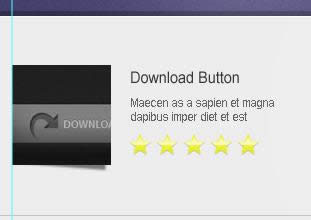
Duplicate the star four times. 復制star四次
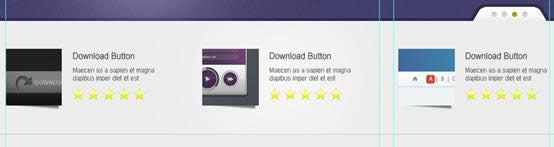
Duplicate the post folder two times a position it as shown in the screenshot below. 復制post文件夾兩次并按照下面的截圖擺放
Step 8: Posts 步驟8:列表
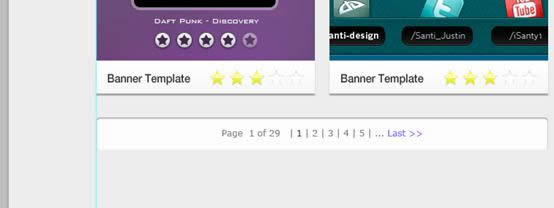
Fill the Background layer with #ededed. Create a new folder and name it Body Posts, create a sub folder and name it post. Now, create a sample 300px by 200px image thumbnail for our post and place it in our canvas. Using Rectangle Tool create a 300px by 45px shape just fill it with any color. Just refer to the screenshot below. 填充背景圖層,顏色: #ededed。創建新文件夾Body Posts,創建一個子文件夾post。現在,創建一個我們列表的300px*200px的縮略圖在我們的畫布上。用矩形工具創建一個300px*45px的矩形,用任意色填充。參看下面的截圖
Add this Blending Option 添加如下的混合選項
Duplicate rate folder from our featured gallery and place it in the post folder. Also, using Text Tool create a sample title, just follow the settings in the screenshot below. 從featured gallery復制rote文件夾(評價星)到post文件夾,并擺放到合適位置。并且,用文字工具創建一個示例標題,按照下面的截圖設置 標題文字,字體:Helvetica,字號:16px,顏色: #363636
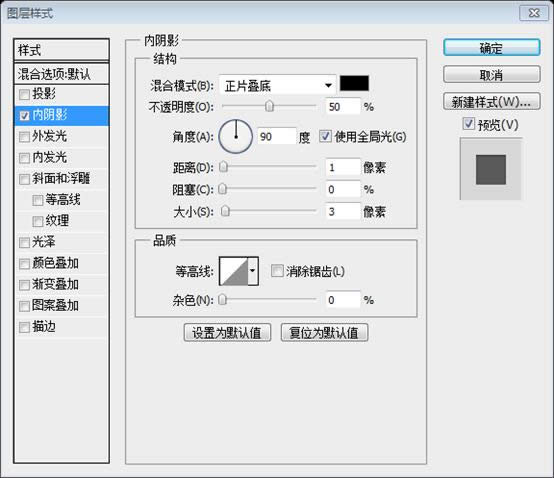
For unrated star style just remove the Gradient Overlay and replace it with Inner Shadow. 沒有標示的星星的樣式是去掉漸變疊加,然后替換為內陰影,還得去掉投影和描邊和添加白色的顏色疊加。
Duplicate post folder five times and align it as shown in the screenshot below. 復制post文件夾五次,并按照下面的截圖擺放,水平間距20px,垂直間距19px
Step 9: Pagination 步驟9:分頁按鈕
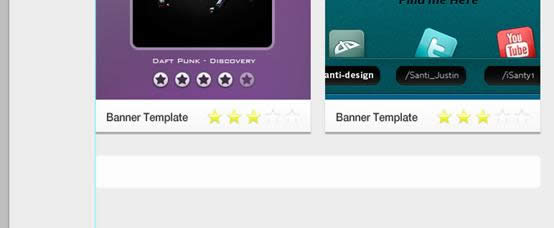
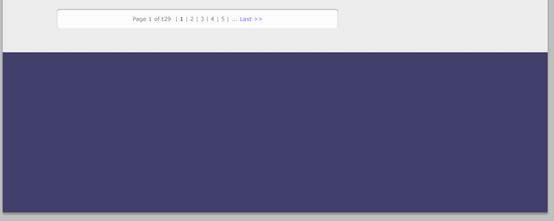
Select Rounded Rectangle Tool and set the radius to 5px then, create a 620px by 45px shape below those posts. 選擇圓角矩形工具,半徑5px,創建一個620px*45px的圓角矩形(120,1403,620,45)在列表的下面,顏色: #fffcfd
Add this Blending Option 添加如下的混合選項
Using Text Tool place the number of pages as shown in the screenshot below. 用文字工具按照下面的截圖書寫頁碼 文字字體:Verdana,字號:12px。頁碼文字的顏色: #7E7E7E,頁碼1的顏色: #363636,Last的顏色: #7266FE
Step 10: Sidebar 步驟10:側邊欄
Create a #c2c2c2 1px line 40px distance from our post, Mask the line and make the tip faded using Brush Tool with a fill color of #000000. You may have something that looks like the screenshot below. 距離我們的列表40px創建一條直線(780,549,1,300),顏色: #c2c2c2,給直線添加蒙版,作出一個淡出的效果,用畫筆工具,填充顏色: #000000。你做的東西就像下面的截圖一樣 作出淡出的效果,建議用,點擊:圖層 > 矢量蒙版 > 顯示全部。然后自下而上用漸變工具填充,從黑色到透明
Duplicate the line and move it to the left and change the color to #ffffff. Create a Horizontal line with the same color place it as shown in the screenshot below. 復制這條直線并移動到左邊,并改顏色為 #ffffff。用同樣的顏色創建一條水平直線并按照下面的截圖擺放。
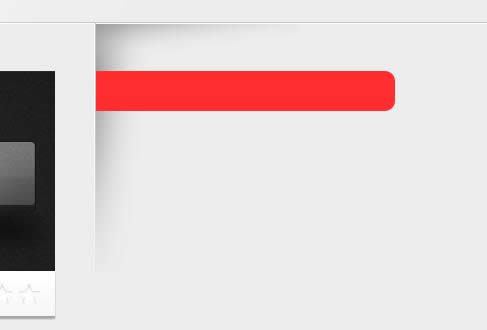
Next, create a new layer below those lines we have just created and name it shadow. Using Selection, Gradient Tool, and Eraser Tool perform what you have seen in the screenshot below. The set the shadow layer to Multiply, Opacity to 50%. 接下來,在這些直線下面新建圖層shadow。用選區工具、漸變工具、和橡皮擦工具配合使用,就像你看到的截圖一樣。設置shadow圖層為正片疊底,不透明度為50%
Duplicate the layer and place it on the top as shown in the screenshot below. It’s up to you to make adjustments, just erase the portion that you don’t like. 復制該圖層并按照下面的截圖擺放到頂部。這取決于你的調整,擦除你不喜歡的部分 建議新建選區,然后用漸變工具水平和垂直方向各劃一下,然后添加和豎直直線一樣的蒙版
Select Rounded Rectangle Tool then set the radius to 10px. Create a shape as shown in the screenshot below. The width of the shape is the remaining width of our canvas and the height will be 40px. 選擇圓角矩形工具,設置半徑為10px。按照下圖創建一個形狀(760,597,320,40),形狀的寬度是我們畫布剩下的寬度,高度40px 用矩形選框工具,創建一個選區(780,500,350,200),然后在選擇矩形的圖層,點擊圖層面板上的蒙版按鈕
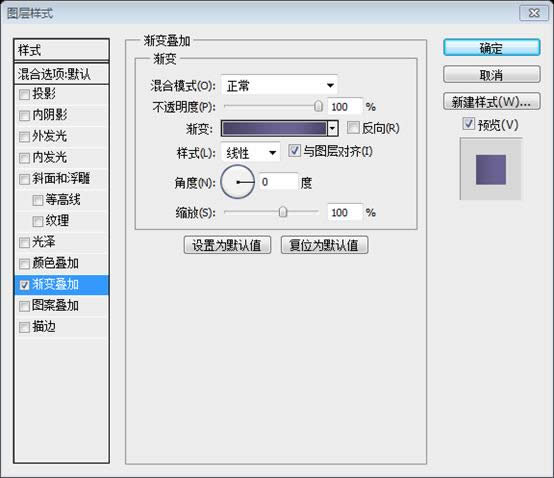
Add this Blending Option 添加如下的混合選項
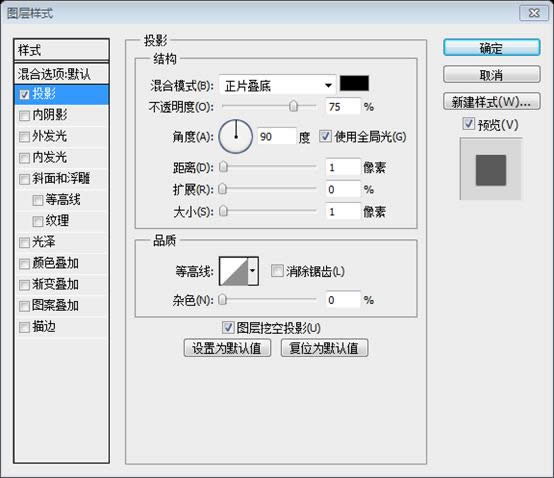
Using Text Tool add a header title. 用文字工具添加一個標題。字體:Helvetica,字號:24px,顏色: #ffffff。并添加投影樣式
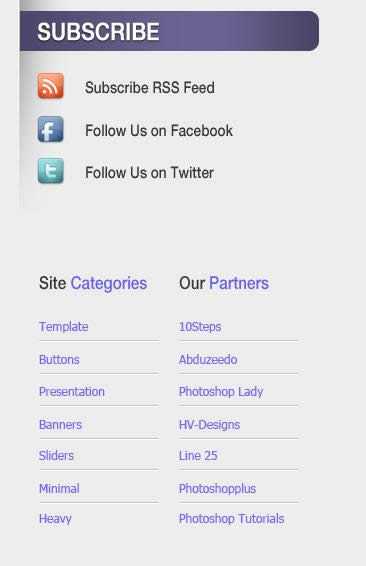
Next open up the social icons and place them on our canvas, align them as shown in the screenshot below, and also add their corresponding social icon names using Text Tool. 接下來打開社會媒體圖標并把它們擺放到我們的畫布,按照下面的截圖擺放,并用文字工具給每個圖標添加對應的說明文字。字體:Helvetica,字號:16px,顏色: #363636
Create two new folders and name them: Categories and Our Partners. Using Text Tool and Line Tool perform what you can see on the screenshot below. 創建兩個新的文件夾:Categories和Our Partners。用文字工具和直線工具配合使用,就像下面的截圖一樣 標題的字體:Helvetica,字號:18px,左邊文字的顏色: #363636,右邊文字的顏色: #655DF3 列表的字體:Tohoma,字號:12px,顏色: #7266FE 分割線:上面的顏色: #C2C2C3,下面的顏色: #FFFFFF
Step 11: Footer 步驟11:頁腳
Create a new folder and name it Footer. Inside footer there are sub folders named: About, Most Love, and Site Links. Using Rectangle Tool with a fill color of #413f6b create a footer that is the right size to you. 新建文件夾Footer。在Footer文件里有這些子文件夾:About、Most Love、Site Links。用矩形工具創建一個合適頁腳的矩形(0,1498,1200,352),顏色: #413f6b
Add this Blending Option 添加如下的混合選項
Convert the shape layer to Smart Filters by going to Filter – Convert for Smart Filters, go to filter again and add noise. 通過點擊:濾鏡 > 轉換為智能濾鏡,轉換該形狀為智能對象,再次點擊濾鏡,添加雜色
并添加一條白色的水平直線(0,1501,1200,1),不透明度設置為20%
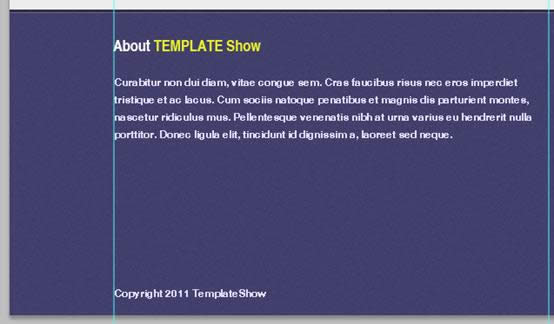
We were going to add info text in our about folder. Using Text Tool put in some dummy text and for the formatting of the text just refer to the screenshot below. 我們要在about文件夾里添加一些信息文字。用文字工具添加一些文字,并按照下面的截圖設置文字的格式 標題:字體:Helvetica,字號:18px,About的顏色: #FFFFFF;右邊文字的顏色: #ECED2B 段落及版權信息文字:字體:Helvetica,字號:12px,文字顏色: #E0DEFF
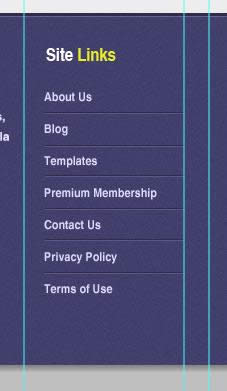
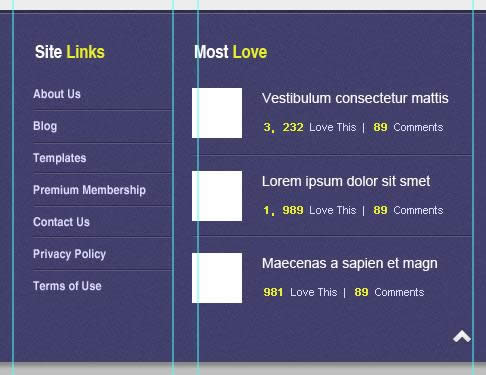
Using Text Tool add links on Site Links folder. 用文字工具在Site Links文件夾添加文字 標題:字體:Helvetica,字號:18px,Site的顏色: #FFFFFF;右邊文字的顏色: #ECED2B 列表文字:字體:Helvetica,字號:12px,文字顏色: #E0DEFF 分割線:上面的直線顏色: #2F2A47;下面直線的顏色: #5C5A89
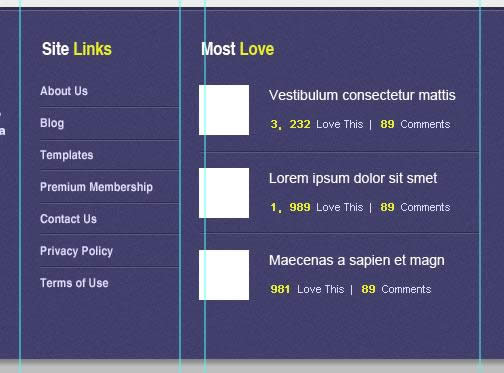
Using Text Tool add a Post Title, Love this, and comments. Create also a 50px x 50px thumbnail and place it as shown in the screenshot below. 用文字工具添加列表標題,Love this,comments。創建50*50的縮略圖并按照下面的截圖擺放 標題:字體:Helvetica,字號:18px,Most的顏色: #FFFFFF;右邊文字的顏色: #ECED2B 列表標題:字體:Arial,字號:14px,顏色: #FFFFFF 下面的小文字:字體:Arial,字號:11px,顏色: #ECED2B、#E0DEFF 分割線:上面的直線顏色: #2F2A47;下面直線的顏色: #5C5A89
Final steps are adding copyright and back to top button. Open up the arrow icon and rotate it facing top. 最終要添加版權信息和回到頂部按鈕。打開arrow圖標并旋轉,使之箭頭朝上
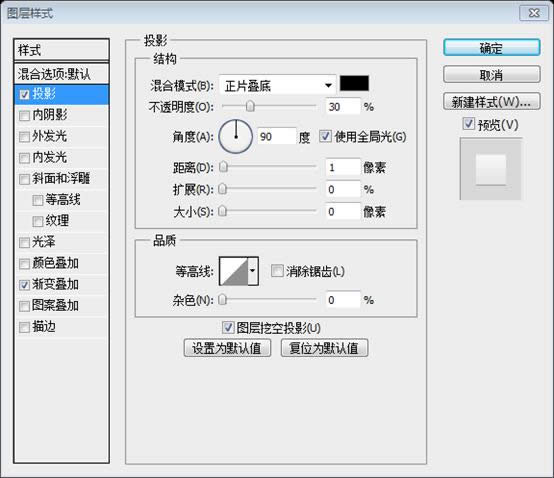
Add this Blending Option 添加如下的混合選項
Finally we’re done! 最終我們完成了
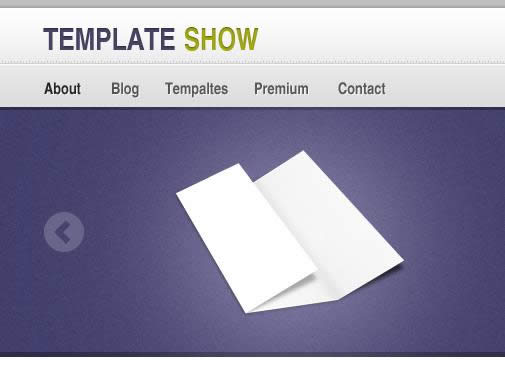
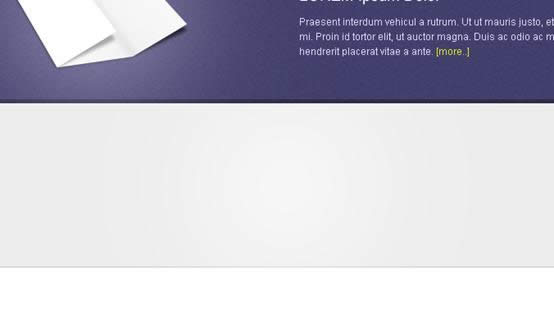
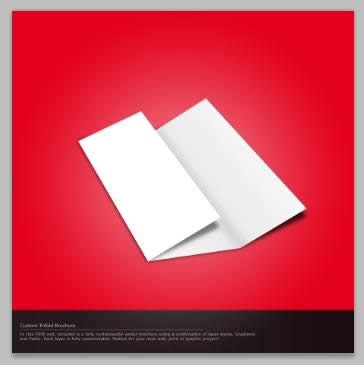
后記: 這是一篇很好的教程。大量的運用了蒙版的技術。整體配色簡潔和諧,讓人賞心悅目。 在網上查閱到這篇教程的時候,只剩下文字說明和無效的死鏈接。感謝這個網站 WayBack Marchine 使我查到了這篇教程的備份,得以順利的完成本教程的翻譯。 同時,再介紹一個網站 TinEYE 它能根據你上傳的圖片找尋類似的圖片(新功能還包括,根據你指定顏色的比例來找尋相關的圖片) 下圖就是我把教程中的折紙上傳后,找到的PSD素材,很好很強大。
更多PS網頁設計教程XXIX——如何在PS中設計一個畫廊布局 相關文章請關注PHP中文網! Photoshop默認保存的文件格式,可以保留所有有圖層、色版、通道、蒙版、路徑、未柵格化文字以及圖層樣式等。 |
溫馨提示:喜歡本站的話,請收藏一下本站!
本站發布的Win7純凈版系統、Win10純凈版和XP純凈版系統僅為個人學習測試使用,請在下載后24小時內刪除,不得用于任何商業用途,否則后果自負,請支持購買微軟正版軟件!
本站所有資源全部來自于網絡資源,如侵犯到您的權益,請及時通知我們(peng896066052@126.com),我們會及時處理.
Copyright © 2018-2020 雨林木風下載站