|
導讀Adobe Photoshop,簡稱“PS”,是由Adobe Systems開發和發行的圖像處理軟件。Photoshop主要處理以像素所構成的數字圖像。使用其眾多的編修與繪圖工具,可以有效地進行圖片... Adobe Photoshop,簡稱“PS”,是由Adobe Systems開發和發行的圖像處理軟件。Photoshop主要處理以像素所構成的數字圖像。使用其眾多的編修與繪圖工具,可以有效地進行圖片編輯工作。ps有很多功能,在圖像、圖形、文字、視頻、出版等各方面都有涉及。 作為編碼者,美工基礎是偏弱的。我們可以參考一些成熟的網頁PS教程,提高自身的設計能力。套用一句話,“熟讀唐詩三百首,不會作詩也會吟”。本系列的教程來源于網上的PS教程,都是國外的,全英文的。本人嘗試翻譯這些優秀的教程。因為翻譯能力有限,翻譯的細節上還有待推敲,希望廣大網友不吝賜教。 約定: 1、本文的軟件是Photoshop CS5版本 2、原教程的截圖是英文的,本人在重新制作的基礎上,重新截了中文版的圖 3、原文中有些操作沒有給出參數。本人在反復測試的情況下測定了一些參數,以紅色的文字顯示。有些錯誤的參數,直接以紅色文字顯示正確的參數 例如:(90,22,231,77),表示矩形的左上角的坐標是(90,22),寬231,高77 例如:(90,22),表示矩形的左上角的坐標是(90,22),矩形的其他兩個參數教程里已經指定 4、在教程的最后會附上本人的心得。有些是對教程中的一些步驟的優化等。
Welcome by this new Photoshop tutorial. During this tutorial will learn to create the Template of a website especially dedicated to the publication of Graphical works (portfolios for Web designers, graphic designers or photographs). For its design, I created a vintage design. I invite you to follow this tutorial because it is really easy to do, then go on! 歡迎來到這個新的 Photoshop 教程。在本教程中將學習如何創建網站的模版,尤其是專用于圖形工作 (包括 Web 設計師、 平面設計師或照片) 的出版。其設計,我創建了一種復古的設計。我請你跟隨本教程,因為它是真的很容易做,讓我們開始吧 !
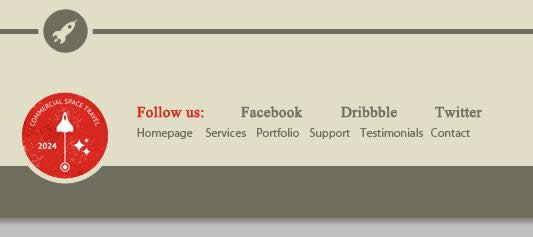
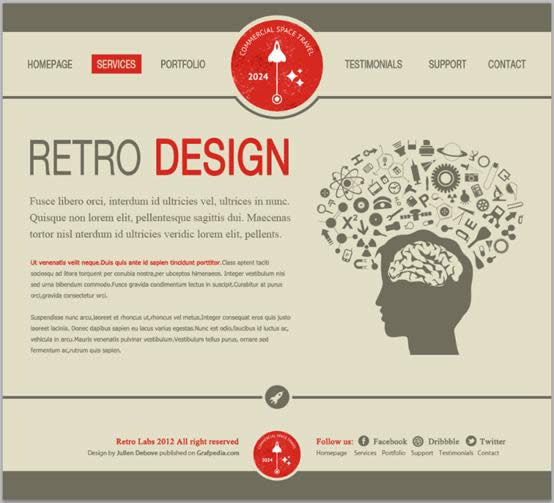
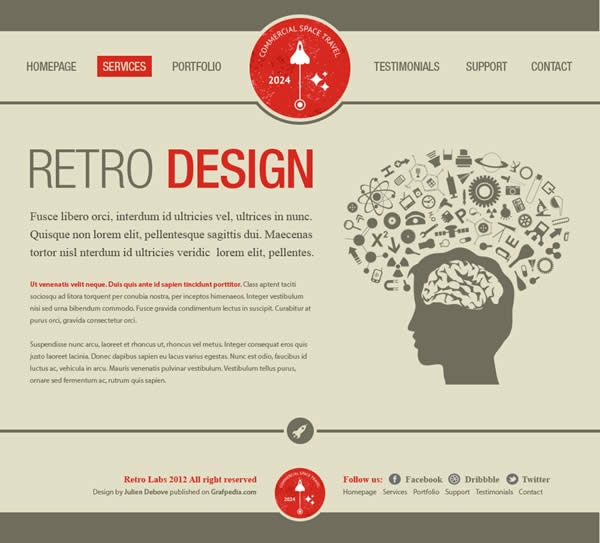
在開始之前,請預覽本教程的最終作品
步驟1:新建文檔
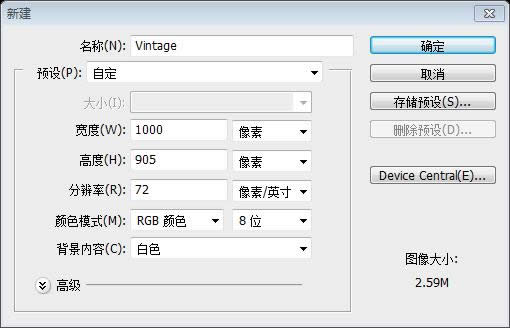
You are now< ready to open your Photoshop software (notice that I used CS6, but you can follow this tutorial using preview versions.) 你已經準備好了打開你的Photoshop軟件(請注意的是,我用的是CS6,但是你可以用以前的版本來學習本教程)。點擊:文件 > 新建。給你的圖片輸入名字、寬度、高度等,然后點擊確定
You picture gets automatically open. Press the Ctrl/Tab + R keys to display the guides. Go now to the menu File>Save as, to save your file. 你的圖片會自動打開。按Ctrl/Tab + R鍵顯示網格。點擊:文件 > 另存為,保存你的文件
步驟2:創建背景和頂部區域
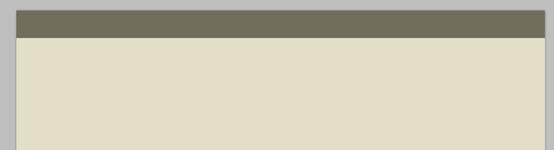
Select the Paint Bucket tool (G) to change the foreground colour to #e3dfc6, and use the Paint Bucket tool (G) to fill the background. 選擇油漆桶工具,更改前景色為: #e3dfc6,并用油漆桶工具填充背景。用矩形工具創建一個灰色的橫幅(0,0),顏色: #706d5c,尺寸:1000*52px
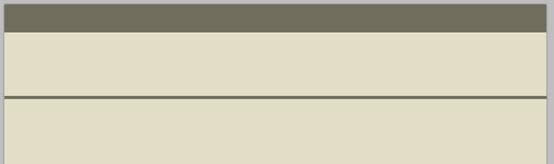
Keep under this bar a free space of 117px, then create a second bar with a size of 1000x5px. 在這個橫幅下方保持117px的空間,然后創建第二個橫幅(169,0),尺寸:1000*5px
Notice: Do not hesitate to use the Photoshop guides to make your work easier. It is really easy to create a guide: click on the rule, then, move you cursor on your document and stop to keep the click button of your mouse, at the right place you need to create the guide. 注意:毫不猶豫地使用 Photoshop 參考線來使您的工作更容易。很容易創建參考線: 點擊標尺,然后,按住鼠標移動您的文檔中合適的位置釋放你的鼠標,創建參考線。
步驟3:創建菜單
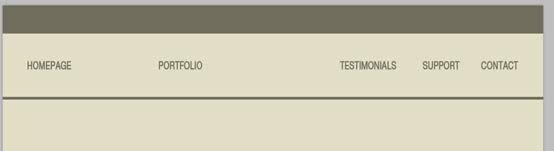
To create the menu, create first a new group you name ? the links”. Use now the Text tool (T) to create the links of the menu (see picture below). Font used Helvetica Neue LT std, with the following colour #706d5c, and a size of 20px. 為了創建菜單,創建一個新組the links。現在用文字工具創建菜單的文字鏈接(參照下面的圖片)。字體用Helvetica Neue LT std,顏色: #706d5c,字號:20px。視情況而定,我水平縮放70%。
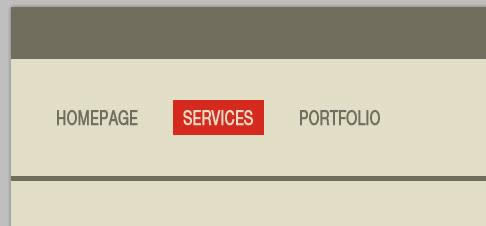
To simulate the hover/active of the links, I created a red rectangle #d7281e just under of one of the links (but you can apply the colour of your choice). 為了模擬懸停/活躍的鏈接,我要在一個鏈接下面創建一個紅色(#d7281e)的矩形(你也可以添加你自己的顏色)
用矩形工具創建一個矩形(162,93,91,35)
更改紅色矩形下的活動鏈接顏色,選擇背景色: #e3dfc6
步驟4:添加LOGO
For the logo, I used a resource available on the website of our partnership Shutterstock. Go to this page to download the vector file. Open the file using Illustrator. 作為標志,我用我們的合作伙伴Shutterstock網站上的資源。到這個頁面下載矢量文件。使用Illustrator中打開的文件。
To create a copy of the red logo, select it and press the Ctrl/Tab + C keys. Go back to your document under Photoshop, then on Ctrl/Tab + V to insert the logo. Depending of the main colour of the Template, you can choice another logo regarding this colour. 為了創建一個紅色LOGO的副本,選擇它按Ctrl + C鍵,回到你的PS文檔,然后按Ctrl + V插入這個LOGO。根據模板中的主色,你可以給這個LOGO選擇這種顏色。
Use the Elipse tool (U) to create a round with same size of your logo and use same colour than the one used for the background #e3dfc6. 使用橢圓工具(U)創建一個和您的LOGO同樣大小的圓(416,30,168,168),并使用相同的顏色作為背景,顏色: #e3dfc6。
Put the layer of the round under the red logo, then press on Ctrl/Tab + T to activate the free transform. In the bar of options (horizontal bar on the top of your screen) change the 100% value by the 110% value. Press on ENTER. 把這個圓的圖層放在紅色LOGO的下方,然后按Ctrl + T自由變換。在上方的選項欄里(在屏幕的上方的水平欄中)把100%改成110%,把寬和高改成185。按ENTER確定
Go to the menu Layer>Layer Style>Stroke, then increase the stroke size to 5px and update the colour with this value #706d5c. 點擊菜單:圖層 > 圖層樣式 > 描邊,然后調整描邊的尺寸為5px,更改顏色為: #706d5c
To finish the logo, create a new layer. Using now the Rectangular Marquee tool (M), create a rectangle under the logo with a height of 117px. Fill the selection using the Paint bucket tool (G) and the background colour #e3dfc6. 為了完成LOGO,創建新的圖層。現在用矩形選框工具,在LOGO的下方創建一個矩形(400,52,200,117),高度為117px。用油漆桶工具給選區填充背景色: #e3dfc6 也可以用矩形工具畫一個矩形(400,52,200,117),顏色: #e3dfc6
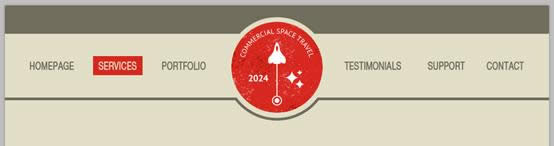
See below the final result of header and logo. 下面是最終的頭部區域和LOGO
步驟5:左邊部分的內容
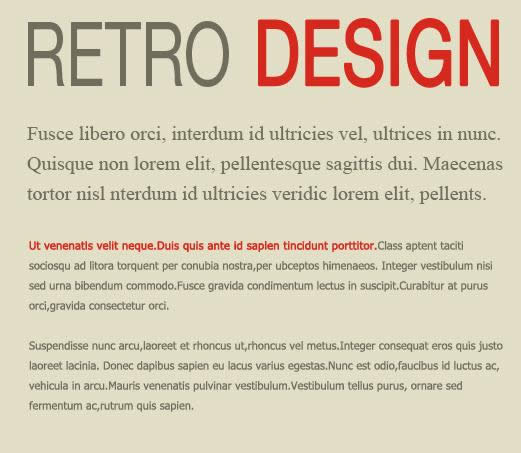
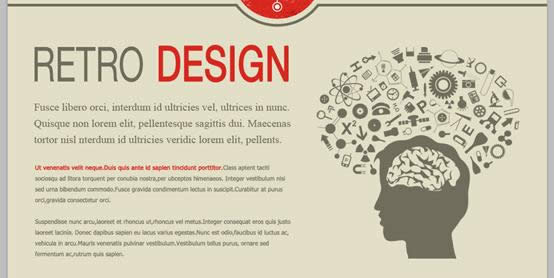
It’s easier to create the contents, use the Text tool (T) to create the title. I used the two following colours: the grey #706d5c and the red #d7281e and the same font than the one used for the menu but with a size of 90px. 內容部分是非常容易創建的,用文字工具創建標題。我用后面的兩種顏色,灰色: #706d5c,紅色: #d7281e,字體和菜單欄上的字體一樣,但是字號改為90px
Use same method to create the paragraphs, with the fonts Times New Roman et Tahoma and a size of 12px. 用同樣的方法創建段落,字體用Times New Roman ,字號:20px;另一段字體用Tahoma,字號11px
步驟6:右邊部分的內容
I used one more time a resource downloaded from our website partnership Shutterstock. Download the vector file, and then open it under Illustrator. Copy and paste it into your Photoshop document. Change the height size regarding the number of text lines. 我多次從我們的網站合作伙伴關系的Shutterstock上下載資源。下載矢量文件,然后在Illustrator中打開它。復制并粘貼到你的Photoshop文件。調整和文本行數的高度相同的尺寸。
The result below must be what you get under Photoshop. 你所得到的Photoshop中的結果必定和下面一樣的吧
步驟7:分割器
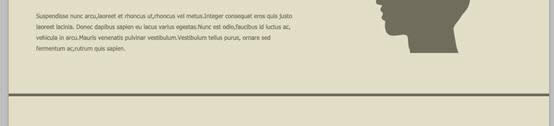
I created a sharing bar under the content; it helps to come back to the top of the page (if you want to create a landing page, check further in this tutorial). 我在內容下創建了一個共享欄,它有助于回來頁面頂部(如果你想創建一個登陸頁面,請查看本教程中后半部分)。
復制橫欄(我們之前創建的1000px*5px的矩形),然后把它擺放到內容的下方(0,716)
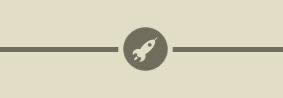
Go back to your first vector document under Illustrator, then select and copy the small round including the rocket. Copy the small logo into your Photoshop document. Put the round in the center of your picture (see the picture below). 回到你第一個Illustrator中的矢量文檔,然后選擇并復制包括火箭的小圓。復制小的LOGO到你的PS文檔。擺放到你的圖片中的圓的中心(參看下圖)
Remember the method to place an element in the middle of your picture. Press on Cltr/Tab + A to create an active selection around aall your document. Select now the Move tool (V) and click on icon “Align the centres on the horizontal direction” (located in the options bar, on the top of your screen). 記住如何把一個元素放置在您的圖片中的方法。按CLTR+ A全選您的文件。現在選擇移動工具(V),點擊圖標“的中心對齊在水平方向”(位于屏幕頂部的選項欄中)。
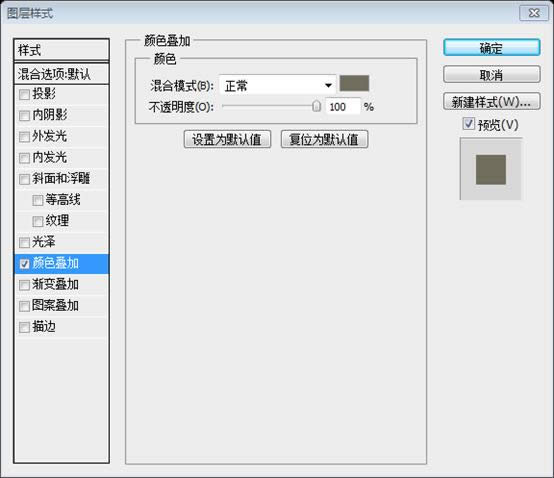
Add two layer styles on your logo: a colour overlay and a stroke of 5px (use for both style, the colour #e3dfc6). 給你的LOGO添加兩個圖層樣式:一個顏色疊加和5px的描邊(描邊樣式的顏色: #e3dfc6),
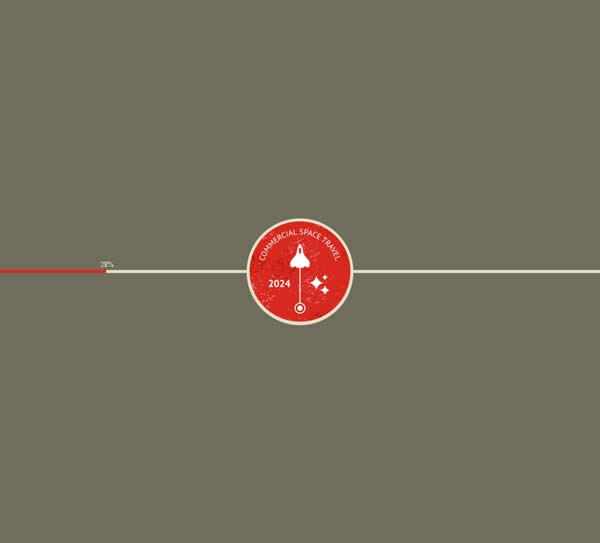
See the result of the pider rocket. 查看分割火箭的結果
步驟8:創建頁腳
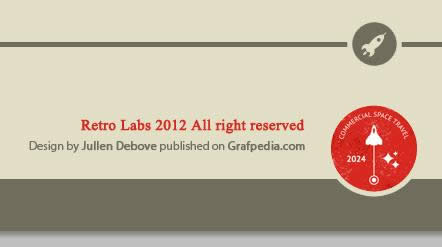
Regarding the footer, duplicate the first grey bar created in the first step. Use the Move tool (V) to move the copy at the bottom of your document. 關于頁腳,重復第一步驟中創建的第一個灰色橫欄。使用移動工具(V)將它移動在文檔底部的(0,853)。
復制紅色的LOGO并擺放到你的文檔的底部
Add a stroke of 5px using the layer styles (colour #e3dfc6). 添加一個5px的描邊的圖層樣式(顏色: #e3dfc6)
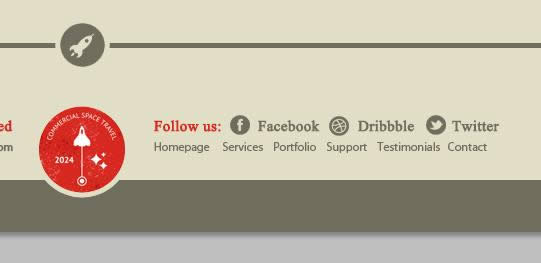
Use the Text tool (T) to create the Copyright of your website, on the left side of your logo. (I used the grey #706d5c and the red #d7281e as well as the fonts Times and Myriad). 用文字工具在你的LOGO的左邊創建你的網頁的版權信息。(我用的顏色,灰色: #706d5c,紅色: #d7281e,字體最好選擇Times和Myriad) 紅色的字體:Times New Roman;字號:15px,加粗;顏色: #d7281e 灰色的字體:Myriad Pro;字號:12px;顏色: #706d5c
Same thing regarding the links to the social networks and the reminde of the top menu. Reserve place for free spaces between each social network links, to insert the regarding icons. 和有關的社會網絡和reminde的頂部的菜單做同樣的事情。準備空間為社會媒體鏈接的,插入有關圖標。 兩行文字和左邊的兩行文字字體相同,顏色:#d7281e和 #706d5c
Go to these pages to download the Twitter, Facebook, and Dribbble icons. 到這些頁面下載Twitter, Facebook, 和 Dribbble 圖標。
Reduce the icons sizes regarding the texts sizes. 調整圖標的尺寸和文字的尺寸一樣
On each icon, add a colour overlay #706d5c (menu layer> layer style> colour overlay). 給每個圖標,添加顏色疊加樣式,顏色: #706d5c(點擊: 圖層 > 圖層樣式 > 顏色疊加)
We are already finished with The Template! As I told you at beginning of this tutorial, it was really easy. 我們已經完成了模版!就像我之前告訴你的,它是非常容易的
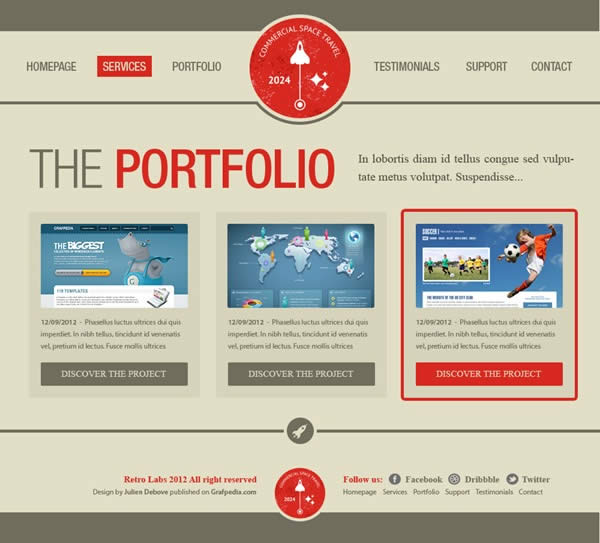
這兒有一些創建另外一些頁面的設計,可以參考一下
或
或
或
后記:這篇教程簡潔明了,比較簡單,整體頁面風格清新樸素。尤其是利用描邊的顏色(和背景色顏色一致)來實現圖片和其他元素之間的分割的技術讓人眼前一亮。 更多PS網頁設計教程XXV——使用Photoshop設計的老式組合布局相關文章請關注PHP中文網! Photoshop默認保存的文件格式,可以保留所有有圖層、色版、通道、蒙版、路徑、未柵格化文字以及圖層樣式等。 |
溫馨提示:喜歡本站的話,請收藏一下本站!
本站發布的Win7純凈版系統、Win10純凈版和XP純凈版系統僅為個人學習測試使用,請在下載后24小時內刪除,不得用于任何商業用途,否則后果自負,請支持購買微軟正版軟件!
本站所有資源全部來自于網絡資源,如侵犯到您的權益,請及時通知我們(peng896066052@126.com),我們會及時處理.
Copyright © 2018-2020 雨林木風下載站